-rw—–– ??
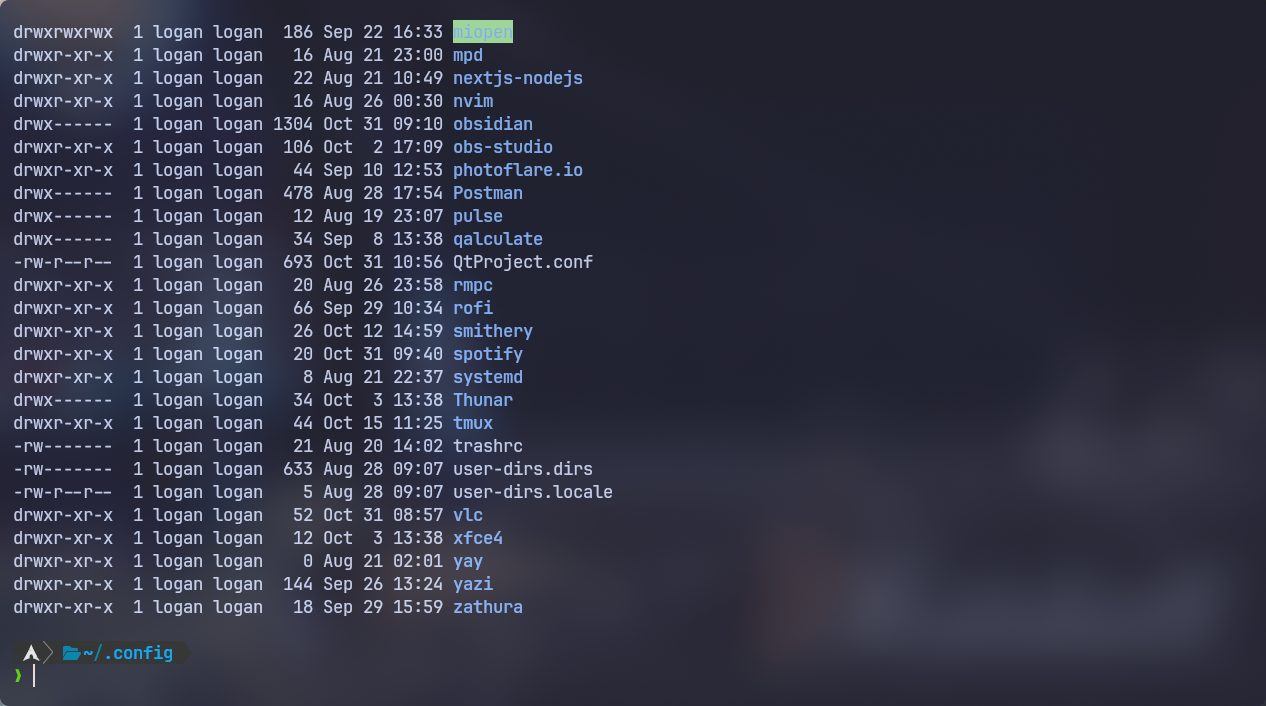
Since I mainly use the terminal, I use the ls command to check files in the current directory, but occasionally when I need to see all files, I use the ls -la command. A while ago, a question suddenly came to mind.
“What do those things at the beginning of each line mean?”
Permission

The 10-11 characters at the beginning each have their own meaning, and when broken down separately, they look like this.
The First Character (1 position)
This shows the type of the file.
| Character | Type | Meaning |
|---|---|---|
- | Regular file | Text, image, program, data files, etc. |
d | Directory | Folder |
l | Symbolic link | Shortcut pointing to another file or directory |
c | Character device | Devices that input/output character by character (terminal, modem) |
b | Block device file | Devices that input/output by blocks (hard disk, CD-ROM) |
Remaining Access Permissions (next 9 positions)
These are grouped in sets of 3, applied in order to Owner (User), Group, and Others.
| Position | Permission | Meaning |
|---|---|---|
r | Read | Can view file contents or check directory listing |
w | Write | Can modify file contents or create/delete files in directory |
x | Execute | Can execute file as a program or access and navigate into directory |
- | No permission | The corresponding permission is not granted |
So if you see -rw-r--r--, the file or directory has the following permissions:
-: Regular filerw-: Owner can read and writer--: Group users can only readr--: Other users can only read
Setting Permissions
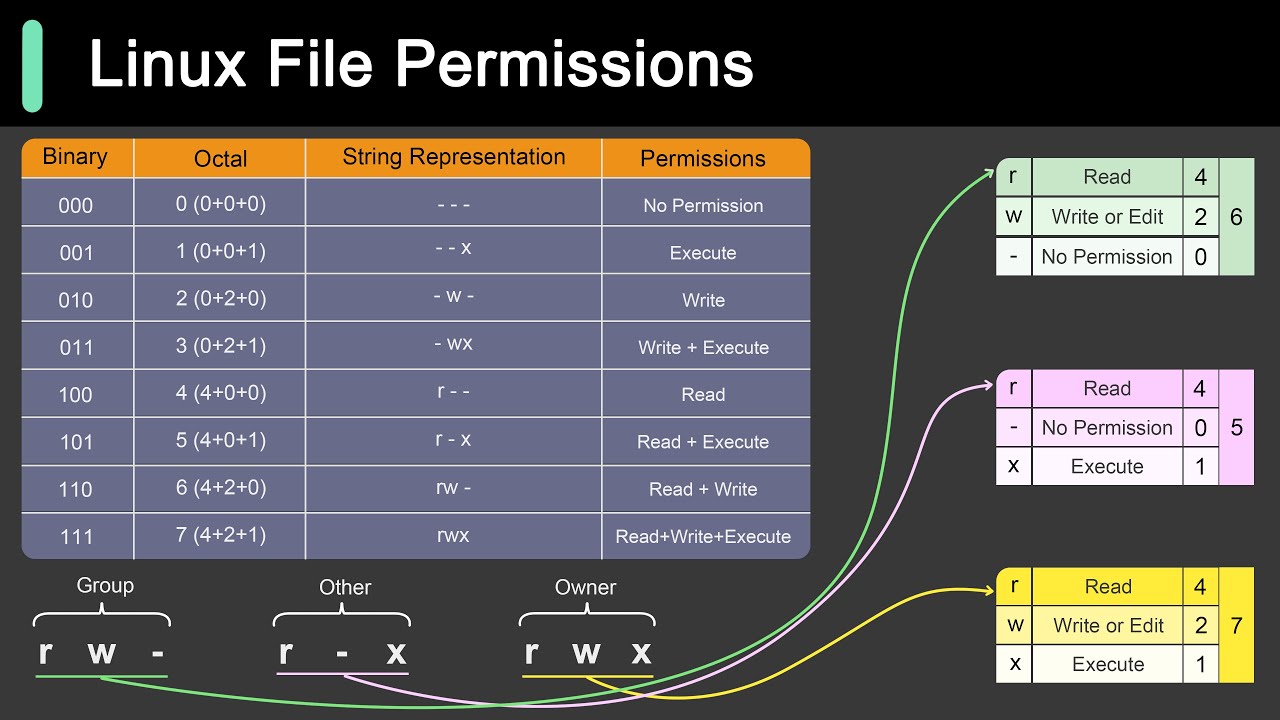
Now let’s set permissions for files or folders. The most common and basic method is using the chmod command. There are two ways to execute this command, which means “change mode”.
1. Octal (Numeric) Notation
This method specifies the final permissions to be granted to the Owner (User), Group, and Others using numbers. It’s the most commonly used and has an intuitive characteristic.
| Permission | Character | Octal Value |
|---|---|---|
| Execute | x | 1 |
| Write | w | 2 |
| Read | r | 4 |
You can add the numbers of each permission from the table to create a 3-digit number.
rwx= 4 + 2 + 1 = 7,r-x= 4 + 1 = 5,rw-= 4 + 2 = 6
// Command format
chmod [User][Group][Others] [file-name/directory-name]
// Command format
chmod [User][Group][Others] [file-name/directory-name]
chmod 644 [file-name/directory-name]
chmod 644 [file-name/directory-name]
Commands like chmod 600 ssh-name or chmod 644 ssh-name that you’ve probably used when generating SSH keys also follow this formula. (Applies read and write permissions only to the owner)
When changing directory permissions, if you want to change permissions for all sub-files and directories inside that directory as well, you can use the -R (recursive option).
chmod -R 755 [directory-name]
chmod -R 755 [directory-name]
2. Symbolic (Character) Notation
This method is used when you want to add (+), remove (-), or newly set (=) specific permissions from existing permissions.
| Target (Who) | Operation (Operator) | Permission |
|---|---|---|
u (User) | + (add) | r (read) |
g (Group) | - (remove) | w (write) |
o (Other) | = (set) | x (execute) |
a (All) |
The symbolic notation of chmod can be usefully used when adding or removing specific permissions, such as u+x (add execute permission to owner) or g-w (remove write permission from group).
// Command format
chmod [Who][Operator][Permission] [file-name/directory-name]
// Command format
chmod [Who][Operator][Permission] [file-name/directory-name]
// Example
chmod u+r [file-name/directory-name]
// Example
chmod u+r [file-name/directory-name]
Occasionally when running ls -l, you may see a + after the permission bits, like -rwxr-xr-x+. This is a special indicator that there’s an additional Access Control List (ACL) set through the setfacl command, in addition to the standard permissions (UGO). (e.g., /home/user)
Conclusion

Today I wrote briefly about something I looked up when I had questions during my early Linux days. Although the chmod command isn’t frequently used, I added related content thinking you’ve probably encountered it often when setting up SSH.
Comments