Virtual Machine (VM)

Note: This is a lengthy post.
Sometimes you need a different operating system than the one you’re currently using, whether it’s Windows, Mac, or Linux. That’s when you use a virtual machine. As the name suggests, a virtual machine allows you to run an OS virtually on top of your computer, enabling you to use the operating system you want.
Popular options include VMware, VirtualBox, and Hyper-V, but today let’s explore QEMU.
QEMU
In a nutshell, QEMU is like a “computer-mimicking chameleon.” It’s an incredibly powerful program that emulates all core computer components—CPU, memory, hard disk, network card, etc.—in software, allowing you to create and run another virtual computer inside your computer. And it’s even open-source (free).
QEMU has two key operating modes:
-
Full System Emulation (QEMU’s most fundamental feature):
- QEMU emulates all components of the virtual computer, especially the CPU, 100% in software. It translates CPU instructions sent by the guest OS one by one into instructions that the host CPU can understand.
- This is primarily used when running systems with different types of CPUs. For example, you can run Raspberry Pi OS (ARM CPU-based) on a Windows PC with an Intel (x86) CPU.
- However, since all instructions must be translated in real-time, performance can be quite slow.
-
Virtualization - Working with KVM (the ‘virtual machine’ feature we commonly know):
- QEMU stops emulating the CPU and instead hands over CPU control to the Linux kernel’s KVM (Kernel-based Virtual Machine) module. KVM uses the host CPU’s virtualization features (Intel VT-x, AMD-V) to execute guest OS instructions directly on the host CPU without translation.
- This is mainly used to run high-performance virtual machines when the host and guest use the same type of CPU. For example, you can run Windows (x86) or another Linux (x86) virtual machine on a Linux server using an Intel (x86) CPU.
- Since the CPU processes instructions directly, it achieves near-native performance, almost matching a real computer. In this mode, QEMU’s role is reduced to emulating devices other than the CPU (disk, network, etc.).
Therefore, QEMU is a versatile emulator on its own, but when combined with Linux kernel’s KVM, it becomes the most powerful and fast virtualization engine. If you need a virtual machine in a Linux environment, QEMU is an excellent choice.
Let’s Install It
Now that we’ve explained QEMU, let’s install it. Since I’m installing on my OS (Arch Linux), you’ll need to find the appropriate installation tools for other operating systems.
// arch linux
sudo pacman -S qemu qemu-emulators-full virt-manager virt-viewer dnsmasq vde2 bridge-utils openbsd-netcat libvirt
// arch linux
sudo pacman -S qemu qemu-emulators-full virt-manager virt-viewer dnsmasq vde2 bridge-utils openbsd-netcat libvirt
Here’s what each package does (you can look into these later if curious):
qemu: The QEMU emulator and hardware emulator for processor virtualization. It serves as the core engine needed to run virtual machines (VMs).qemu-emulators-full: A package that includes emulators for all CPU architectures supported by QEMU (x86, ARM, MIPS, etc.). Installing this package allows you to run guest operating systems of various architectures.libvirt: A high-level API, daemon, and management tool for controlling virtualization technologies (QEMU, KVM, etc.). It’s the core of command-line tools likevirshand plays a role in managing virtual machines, networks, and storage in an integrated way.virt-manager: A graphical user interface (GUI) forlibvirt. It helps you create, start, stop, and manage virtual machines without directly entering commands.virt-viewer: A client program that allows you to view the screen of a virtual machine. It’s used to connect to the graphical console of virtual machines running throughvirt-manager.dnsmasq: A lightweight network service providing DHCP (Dynamic Host Configuration Protocol) server and DNS (Domain Name System) cache functionality. It’s used bylibvirtto assign IP addresses to guest virtual machines and resolve domain names.vde2: A tool that implements Virtual Distributed Ethernet. It’s used to configure virtual networks between multiple virtual machines or hosts.bridge-utils: A collection of utilities used to create and manage virtual network bridges.virshuses tools from this package when creating network bridges like virbr0.openbsd-netcat: A tool used to read and write network connections. It may be needed for debugging or special network configurations in virtualization environments.
Next, use systemctl to enable libvirtd to start automatically when the computer boots, and run it now.
// Auto-start on every boot
sudo systemctl enable libvirtd

// Start now
sudo systemctl start --now libvirtd
// Auto-start on every boot
sudo systemctl enable libvirtd

// Start now
sudo systemctl start --now libvirtd
Then add your user to the usergroup.
sudo usermod -aG libvirt $(whoami)

newgrp libvirt

// check after reboot
groups
sudo usermod -aG libvirt $(whoami)

newgrp libvirt

// check after reboot
groups
Next, check and start the virtual network.
sudo EDITOR=nano virsh net-edit default

sudo systemctl restart libvirtd

sudo virsh net-start default

sudo virsh net-autostart default
sudo EDITOR=nano virsh net-edit default

sudo systemctl restart libvirtd

sudo virsh net-start default

sudo virsh net-autostart default
Finally, let’s check one more time.
qemu-system-x86_64 --version

// result
QEMU emulator version 10.1.2

sudo virsh net-list --all

// result
 Name      State    Autostart   Persistent
--------------------------------------------
 default   active   yes         yes
qemu-system-x86_64 --version

// result
QEMU emulator version 10.1.2

sudo virsh net-list --all

// result
 Name      State    Autostart   Persistent
--------------------------------------------
 default   active   yes         yes
The initial setup is now complete. Now let’s open the GUI with the virt-manager command (you can also run it from the app icon).
virt-manager
virt-manager
Creating a Virtual Machine

Initially, you’ll just see QEMU/KVM there. Now let’s install Kali Linux and create a virtual machine.
Click the glowing monitor icon next to OPEN in the upper left corner.
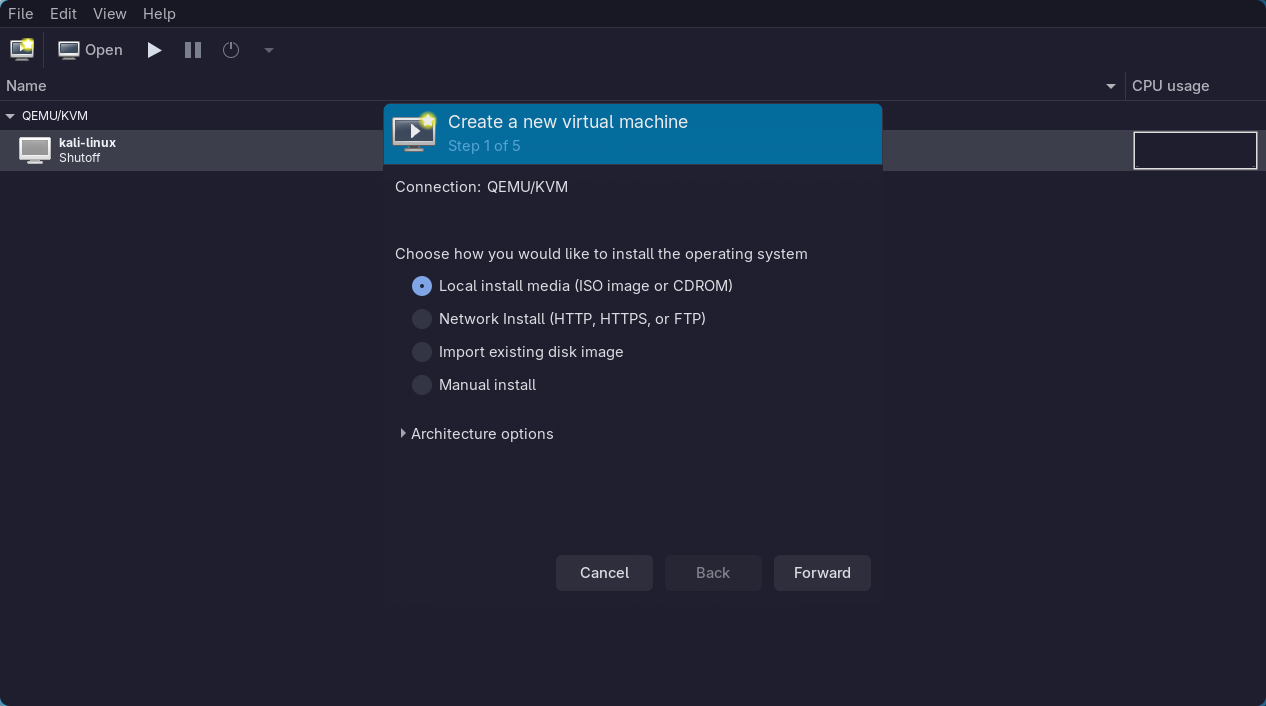
This will appear. Just click next.
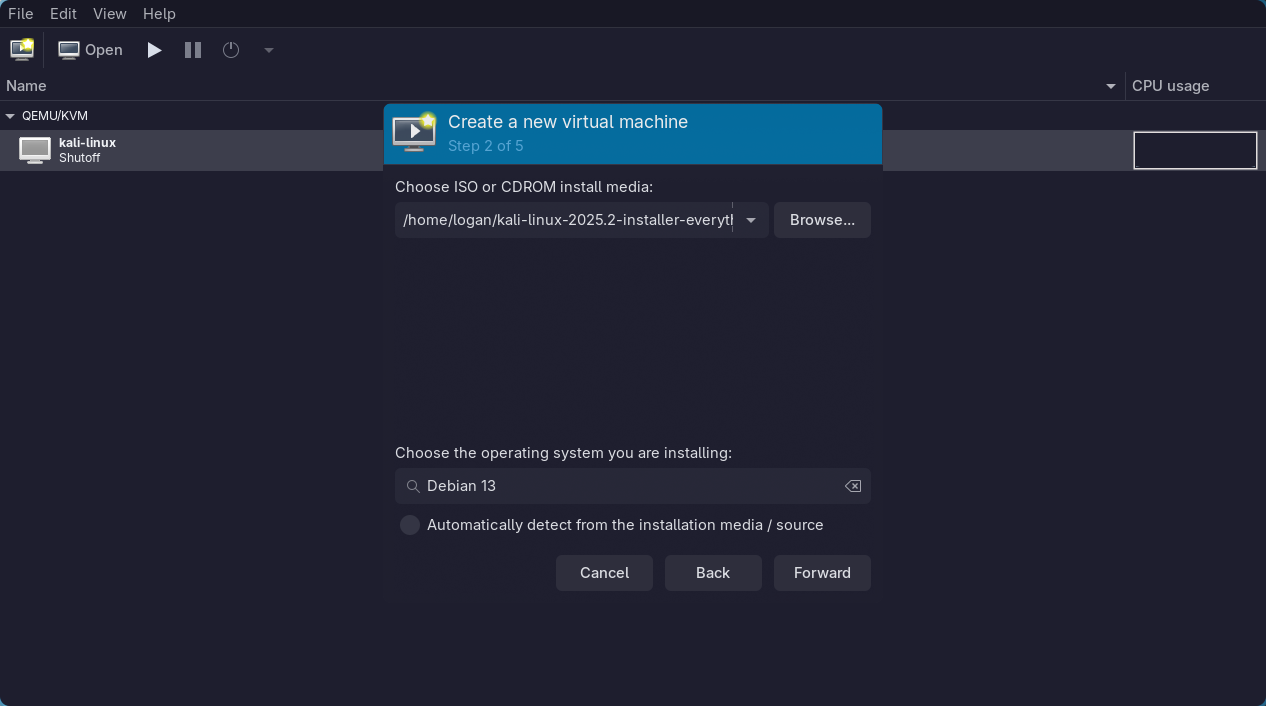
Find and select the ISO file you downloaded, then click next. If the OS isn’t automatically selected, manually type and select Debian 13.
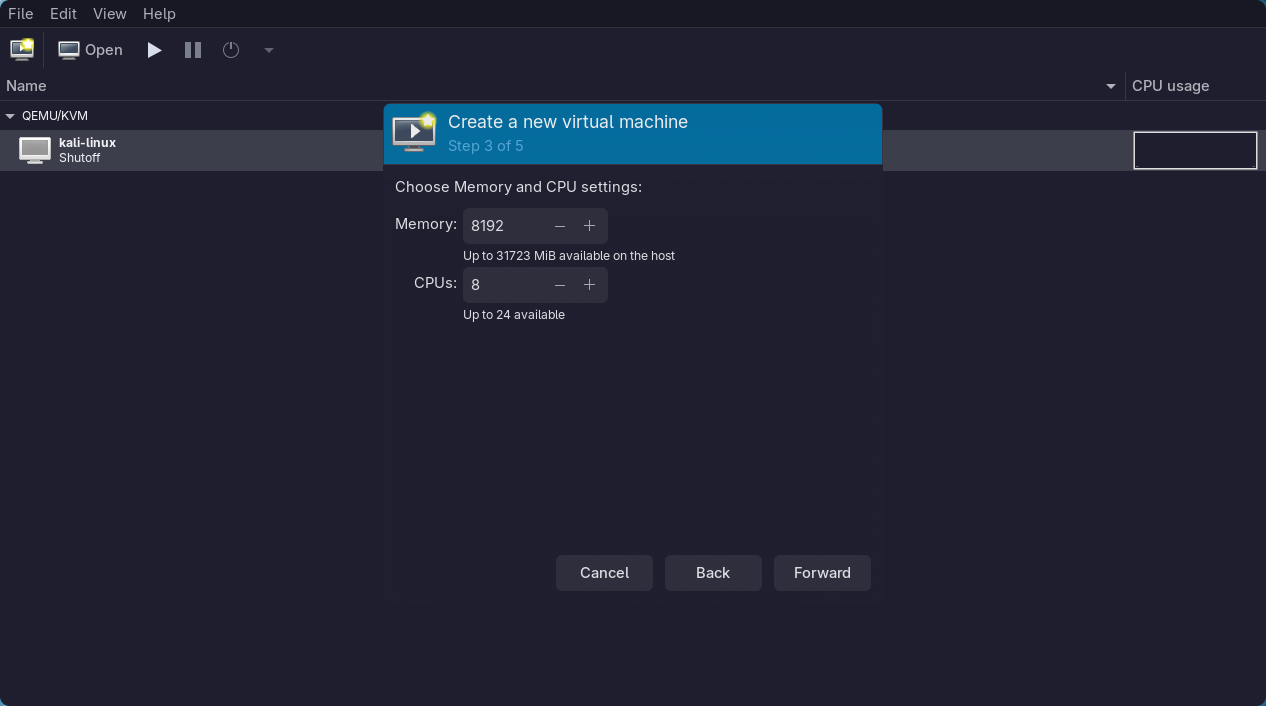
Next, you need to allocate memory and CPU. I allocated 8GB of memory and 8 CPU cores. This provides a very smooth environment, so allocate appropriately. (Recommended specs are 4GB memory, 2 CPU cores)
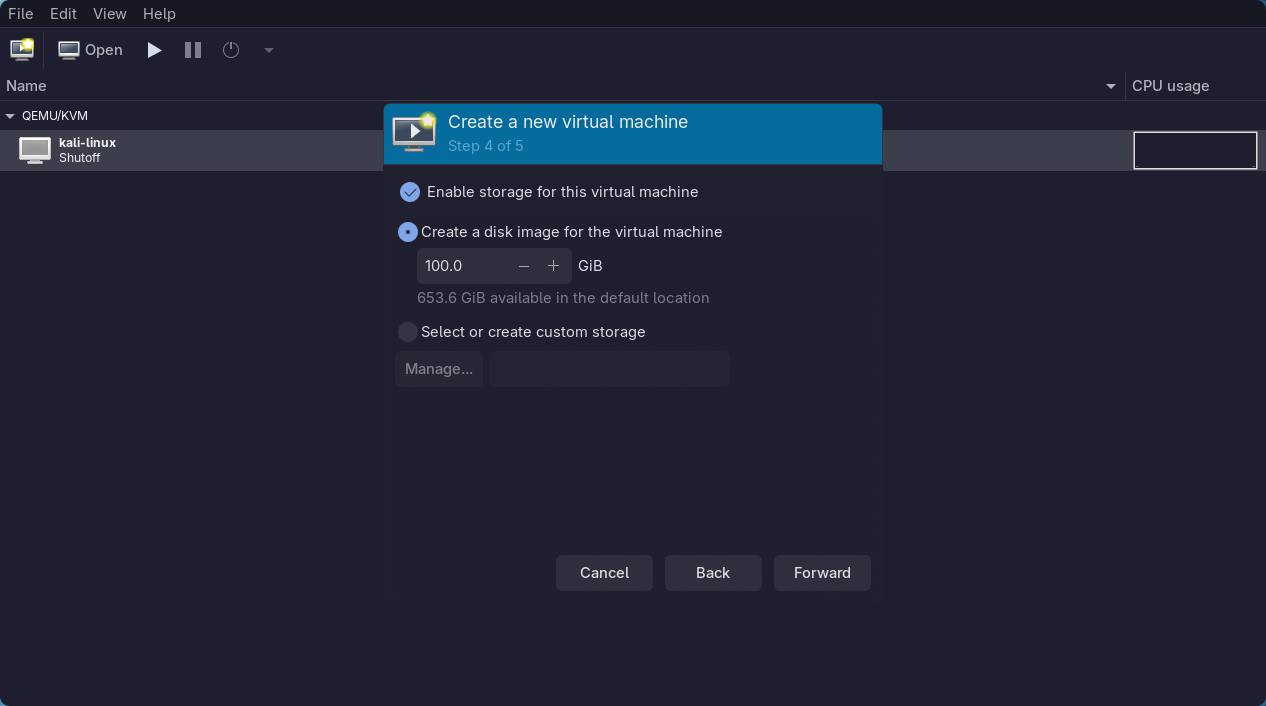
Then you need to select the storage capacity. Since I’m using Kali Linux “everything” which is the highest option, I allocated 100GB.
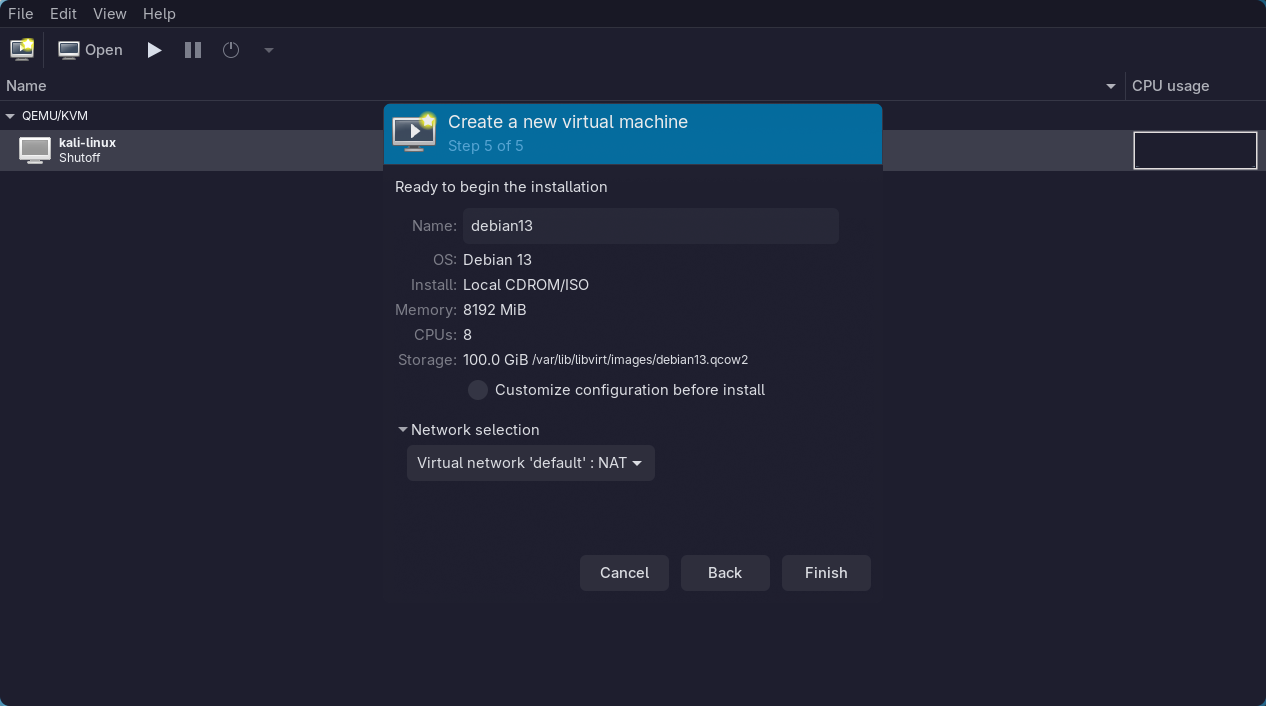
Finally, confirm and click finish.
After selecting it, clicking OPEN and the run button, once you complete the initial Kali Linux installation:
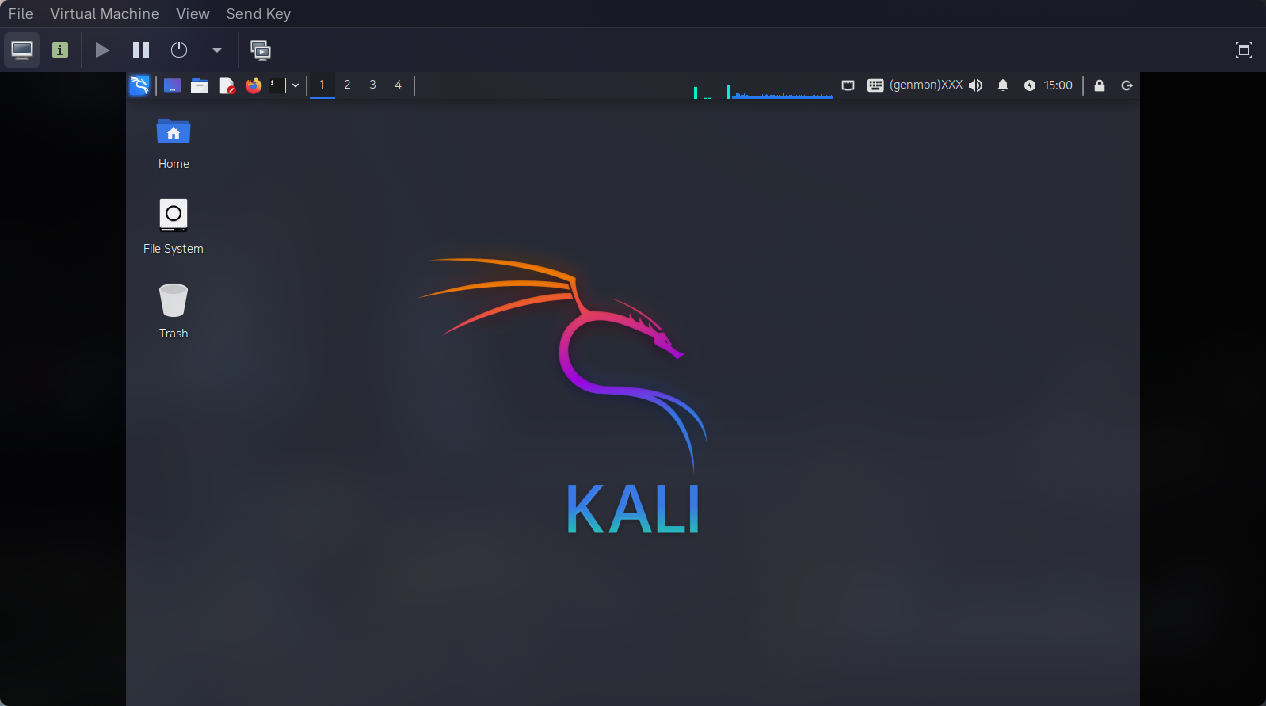
It runs very nicely. Since this is a QEMU post, you can look up the Kali Linux initial installation on your own.
Additionally, my mouse was initially laggy, so I configured 3D acceleration settings to make it smoother. Let’s set it up. (Optional)
sudo pacman -Syu qemu-full

sudo systemctl restart libvirtd

qemu-system-x86_64 -display help | grep spice

// result
spice-app
sudo pacman -Syu qemu-full

sudo systemctl restart libvirtd

qemu-system-x86_64 -display help | grep spice

// result
spice-app
Then run virt-manager and configure these two settings.

video *** -> model: virtio, 3D acceleration: true
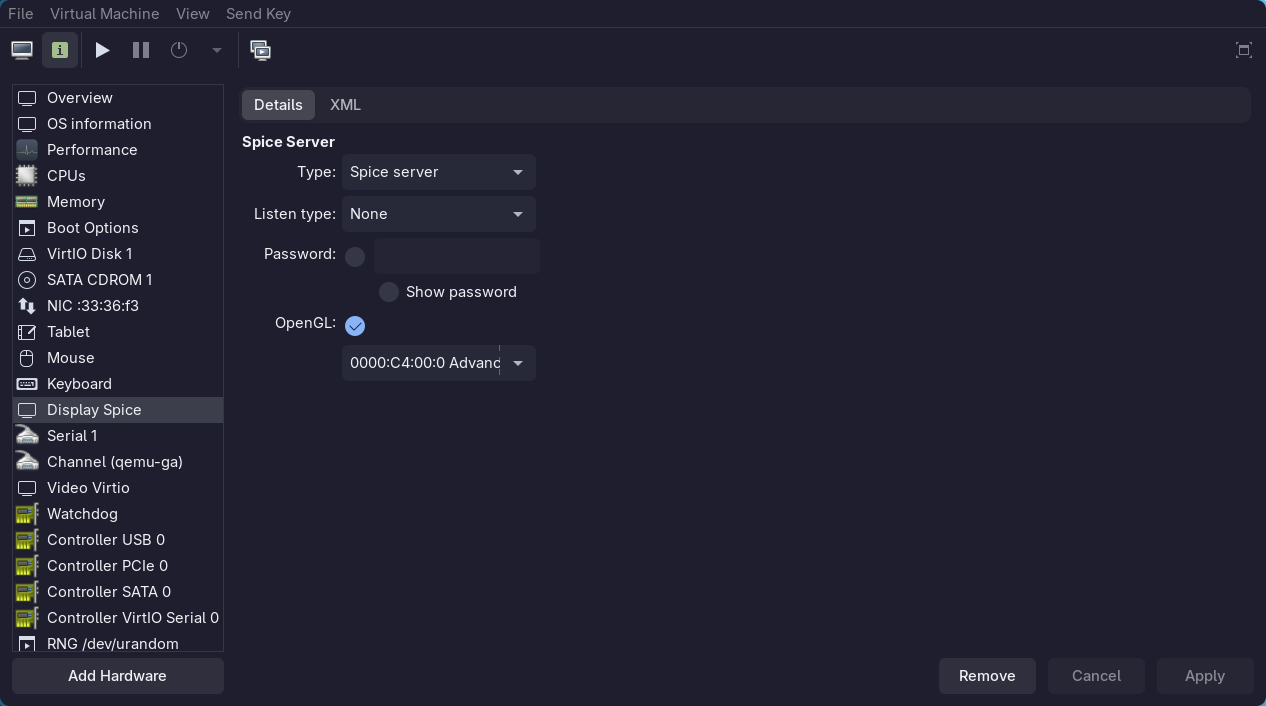
display *** -> type: spice server, listen type: none, openGL: true
Conclusion

When you need an OS as a developer or want to learn about one, or when you want to know about virtual machine programs, free QEMU is an excellent choice. Additionally, you can do everything with commands alone—creating virtual machines, changing settings, checking lists, starting them, etc.—so if you want to run it purely with CLI, you can look that up separately.
Comments