How to Create?

Computer = Dummy
This formula is well-known among developers who code. And this formula also applies when giving commands to AI.
For example, when you want to draw an image with AI and say “I want to draw a sheep!”, the computer doesn’t know whether it’s a realistic sheep, a Ghibli-style sheep that was popular before, a cartoon sheep, an animated sheep, or a fantasy-style sheep. When it doesn’t know, it should ask, but instead it arbitrarily draws whatever it wants, resulting in something different from what you intended. Why doesn’t it ask? Because I didn’t give it the command “ask me if you don’t know.”
That’s why when generating images rather than text, there are so many things you need to explain to the computer. However, it’s naturally difficult to write all the commands in one model. That’s why there are parts that give commands for each section. Some handle only poses, some only backgrounds or objects, some only art styles, etc. Let’s briefly explore the parts that command each section.
Prerequisites

Honestly, you don’t need to know all of this, or even what I’m about to explain, but knowing it makes it easier to customize and play around with, so I’ll write it just for reference.
Essential components:
checkpoints: The main model file. Simply put, it’s like the artist. (e.g., Chimchakman, Hayao Miyazaki, etc.)loras: Not the main model, but gives the main model a “draw in this style” feeling. Simply put, it’s the art style. (e.g., Chimchakman or Hayao Miyazaki-style image style)embeddings: Additional objects or character styles in the image. For example, when you ask to draw the ocean, AI checks embeddings and shows the ocean as written therecontrolnet: This controls things like pose, composition, depth, etc., like a sketch. For example, when asking to draw a person kneeling, it takes the kneeling sketch from controlnet and draws it (whether it’s upright, toes down, kneeling diagonally, etc., it sketches according to what’s written in controlnet)upscale_models: Models that upscale low-resolution images to high-resolution and add details.vae: Models that handle the color and final details of the image.
These are practically what you need, and the rest provide additional functions.
However, people weren’t satisfied with this division, so there are models that pack everything into checkpoints. These are models customized based on Stable Diffusion XL or FLUX. Since they have smaller file sizes than existing models and can generate images more freely, I’ll try creating based on these.
A representative community where such models gather is Civitai. Let’s go to the link below to download the model.
Civitai homepage: civitai
What to Create?
Yeah right. When you actually think “I should create an image with AI!”, the ‘what kind of’ becomes a common dilemma. In that case, let’s go to the site above and click on the image tab.
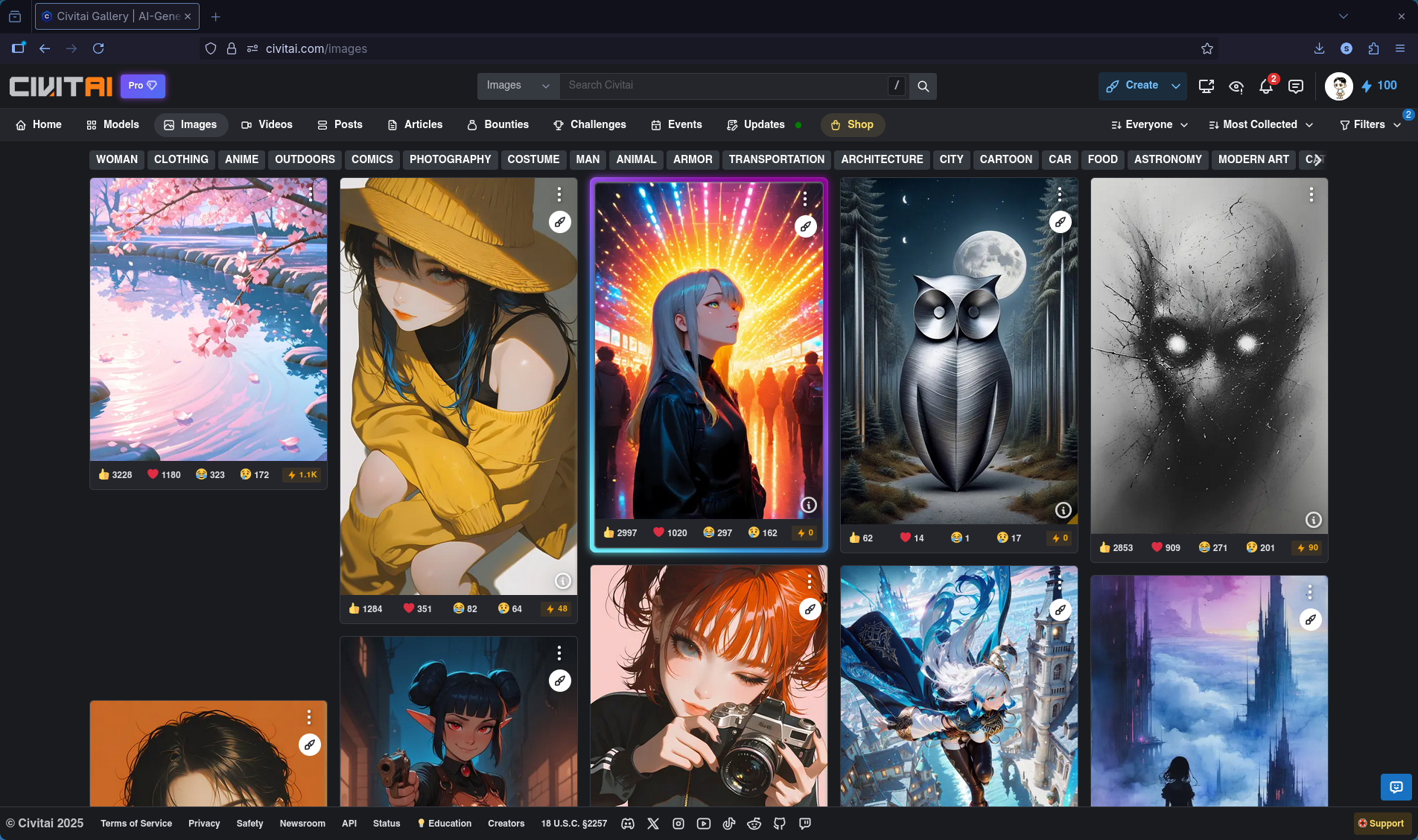
Then you’ll see images like the ones above. These are images that people upload to the community to show others what they’ve created. Click on an image you like among them.
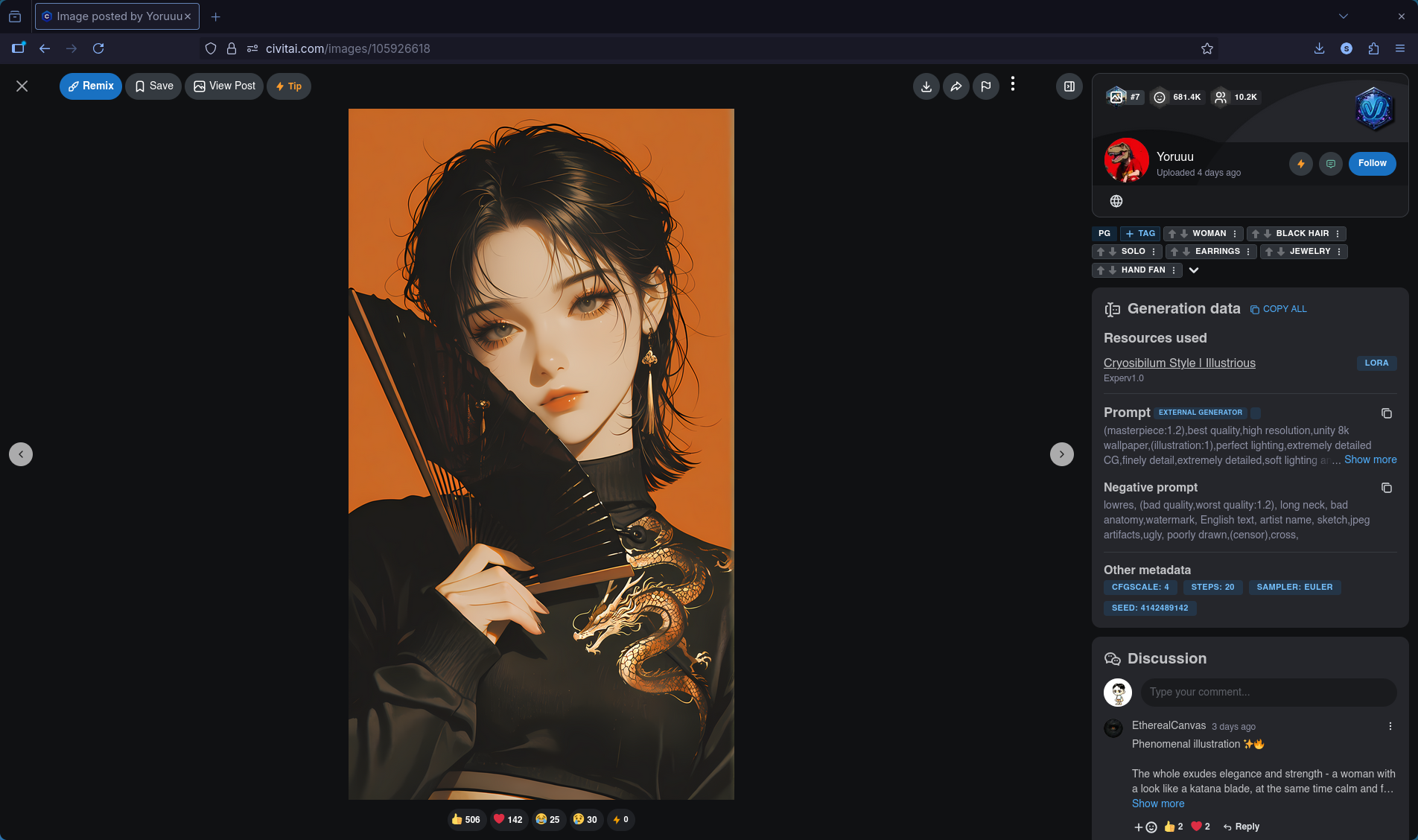
The information you can find when looking at this image is:
- You can create AI images with just one checkpoint.
- There are two types of prompts below. (negative and positive)
- There’s metadata to input. (cfgScale, steps, sampler, etc.)
Just knowing these three things, you can create AI images. Let’s try creating one based on this.
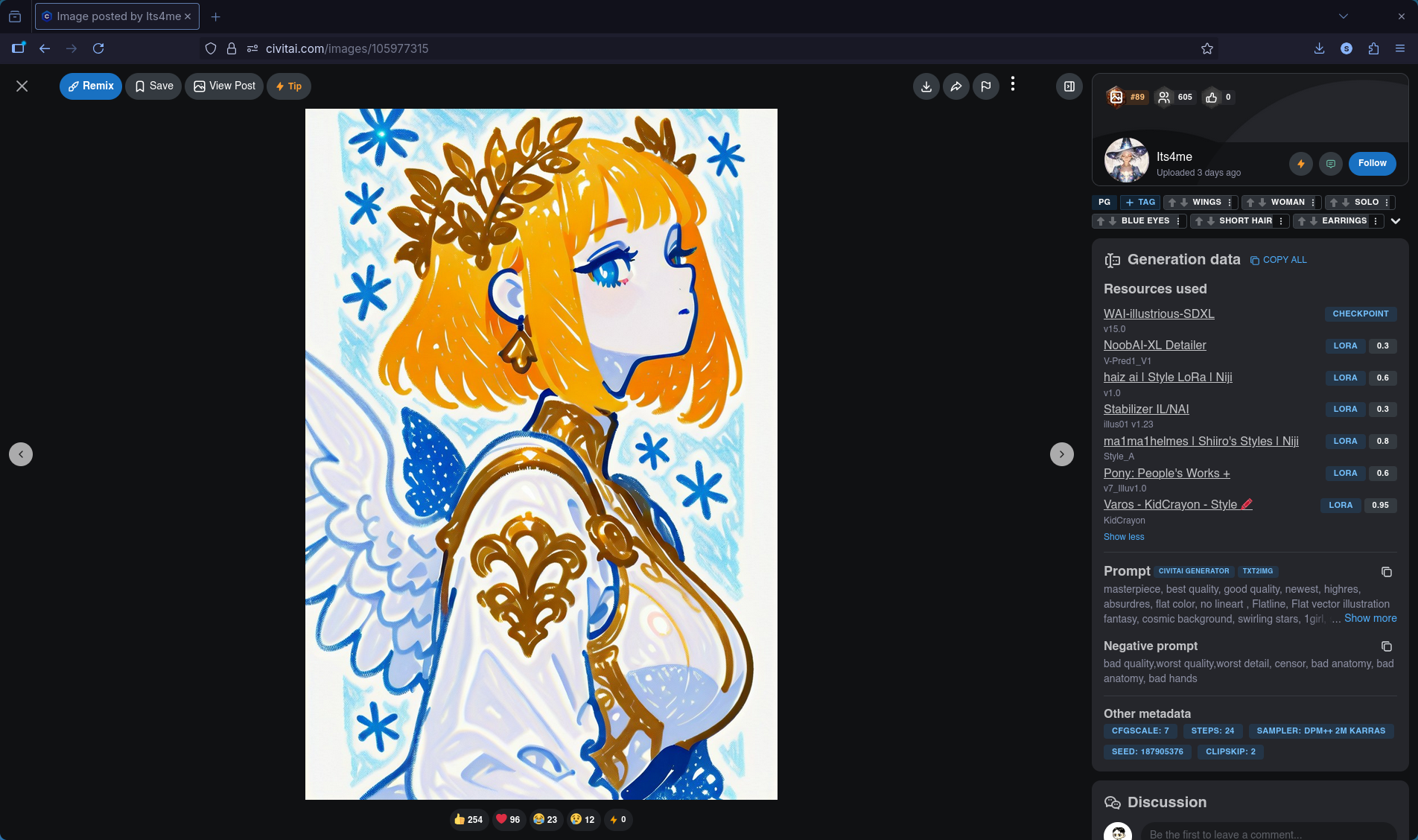
After several hours of searching, I found that the WAI-illustrious-SDXL checkpoint is quite popular. So let’s try creating with just this one. Click on WAI-illustrious-SDXL on the right.
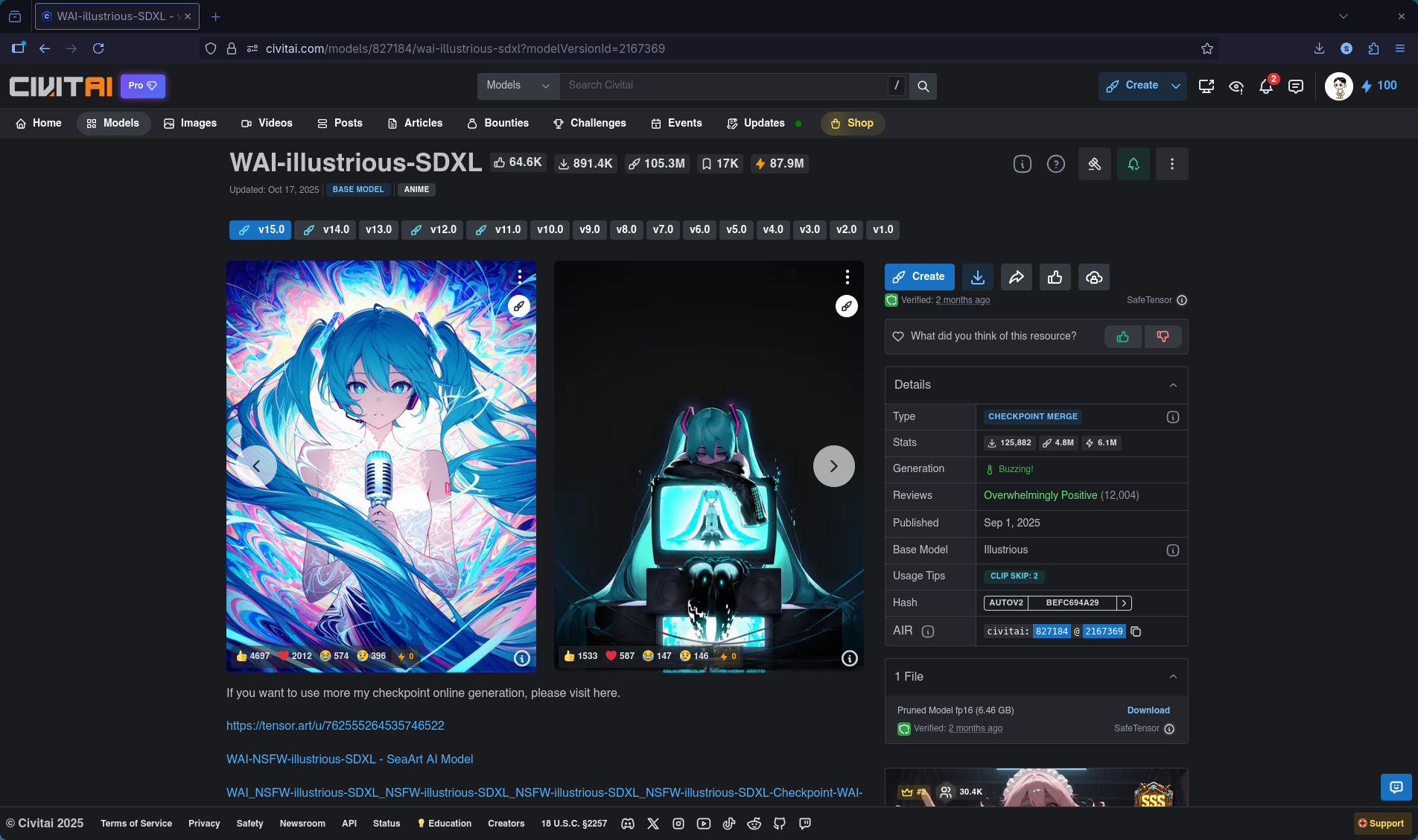
When you click, you’ll see details and descriptions of the current version. Click the download icon on the right or the download button next to Pruned Model fp16 (6.46 GB) at the bottom right to download it. Then place the downloaded model in models/checkpoints in the previously downloaded ComfyUI directory.
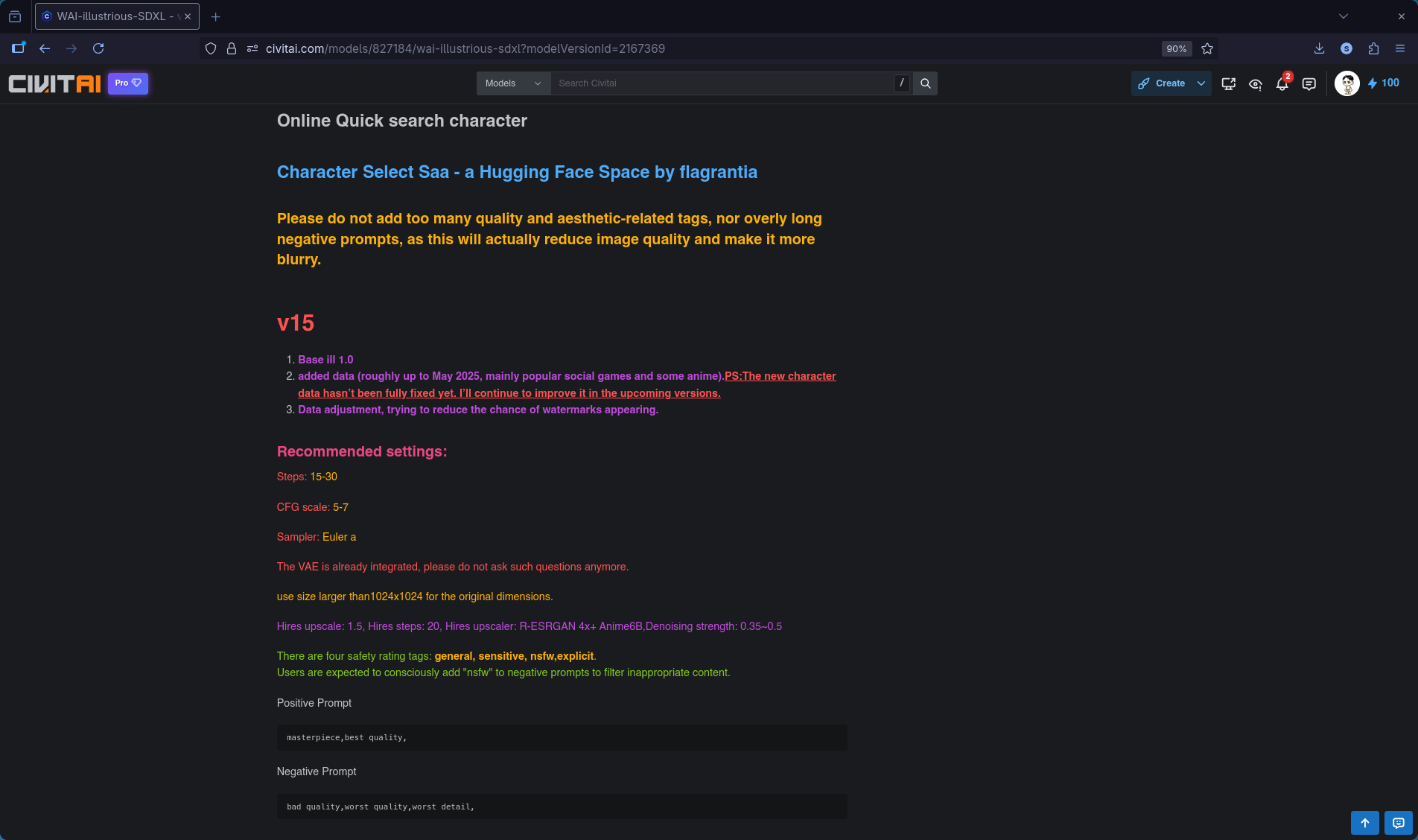
Then click Show More at the bottom and scroll down to see the recommended prompts and metadata methods when using version 15. And if you click on Character Select Saa - a Hugging Face Space by flagrantia, you’ll be taken to a Hugging Face site.
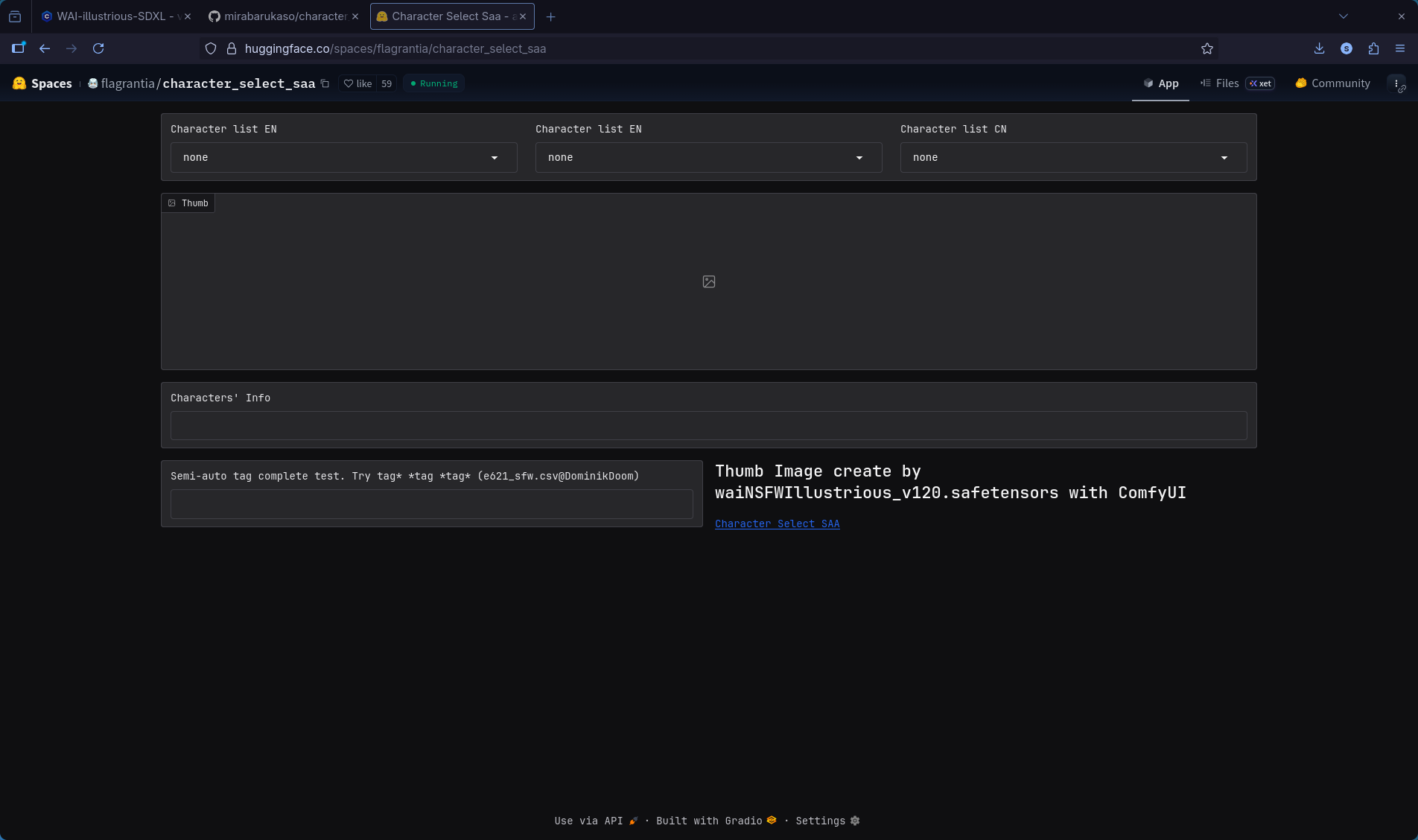
Looking at it, the characteristic of this WAI-illustrious-SDXL model seems to be that when you write a specific character name in the prompt, it’s designed to generate that character’s appearance. In other words, it’s a prompt-intensive model that enables anime or 2D character faces to appear. And this site seems to be a program that helps you visually find characters you can write in the prompt. (By the way, it seems to be updated only up to version 12, so if you want to check up to version 14, you can install and run what’s distributed on GitHub. Here)
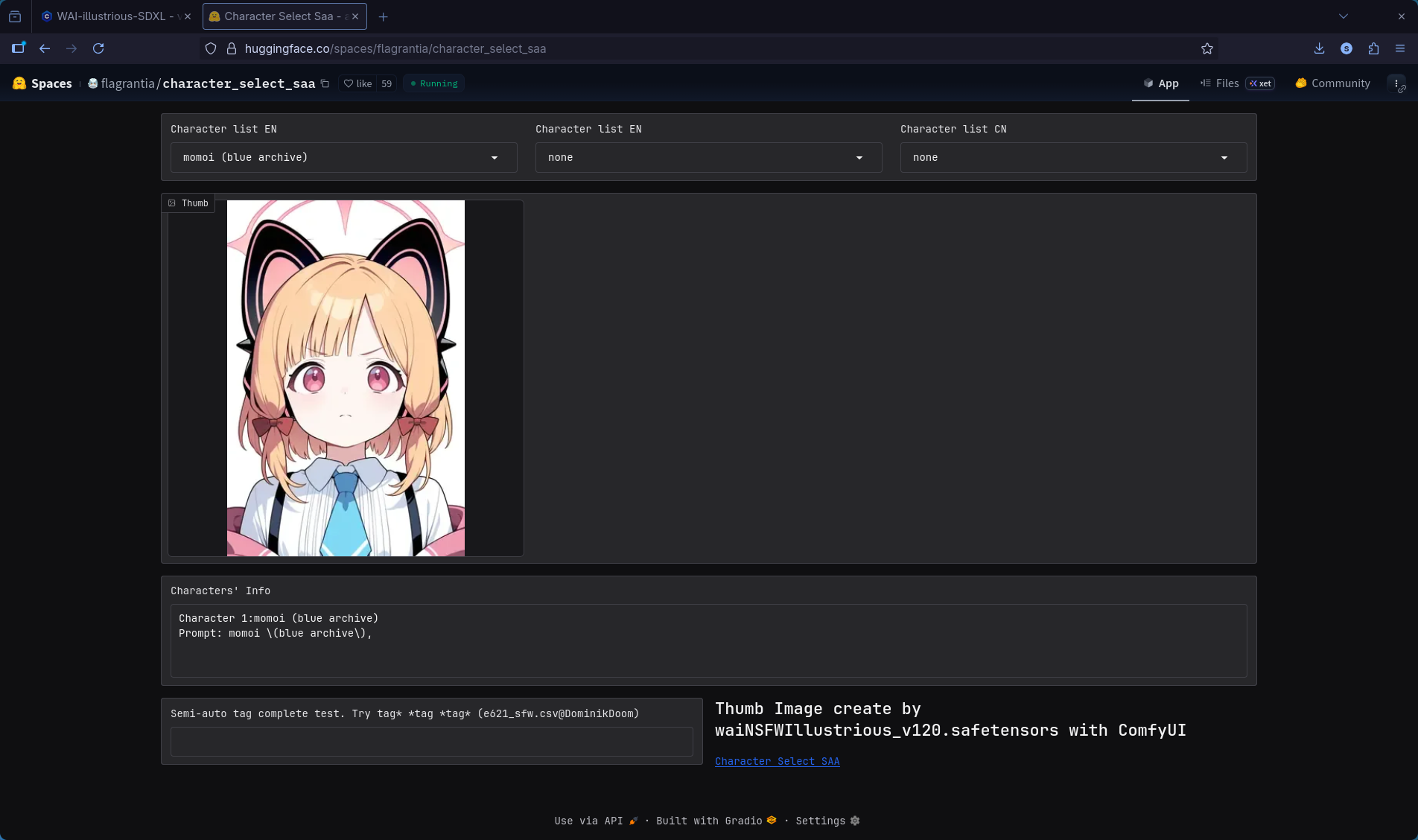
When you roughly select any character, you can see that it appears as a prompt below. This means if you write this in the prompt, it will come out like the image.
And if you look a bit further down, there are recommended settings. Now let’s really create something!
Creating Images with ComfyUI
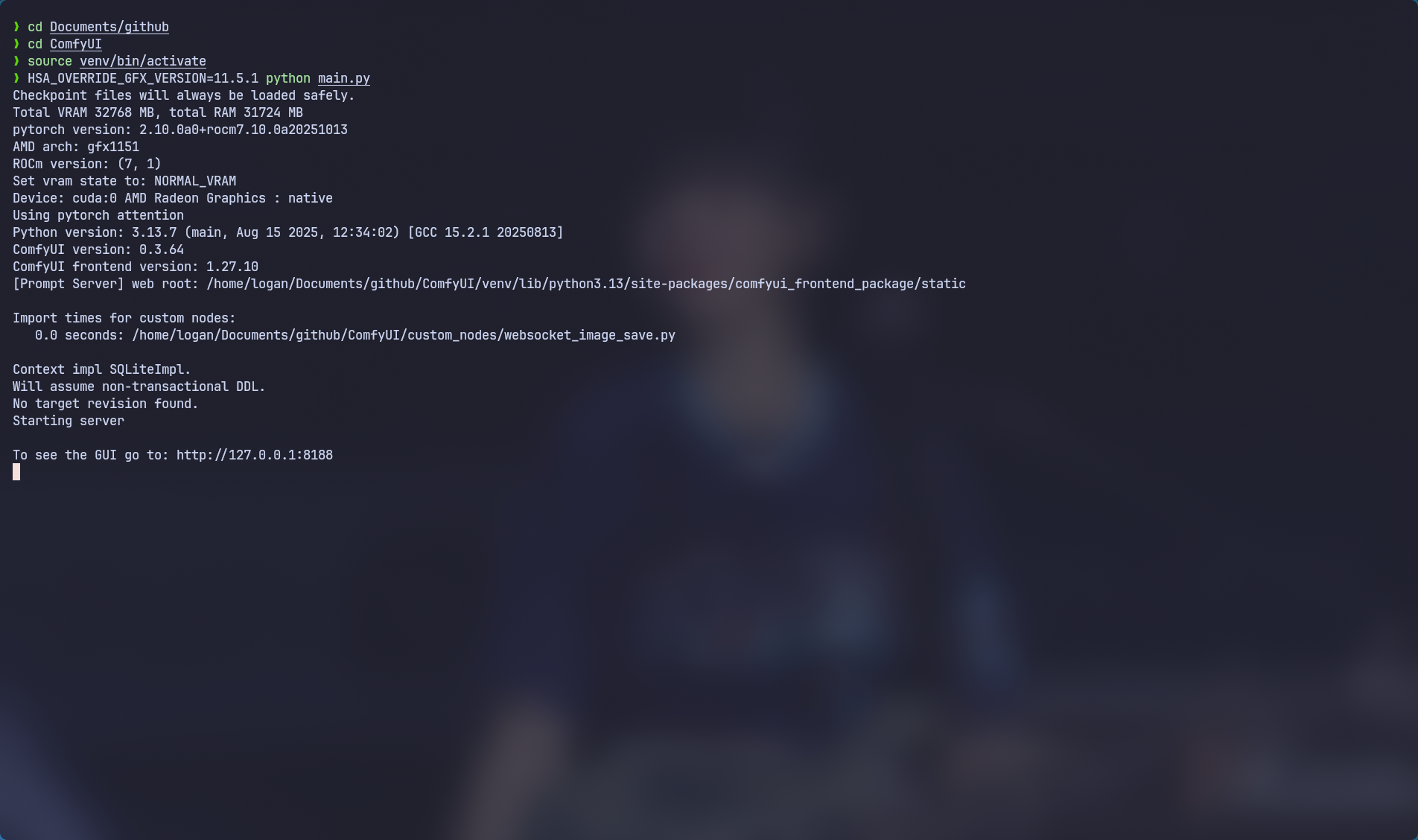
Let’s recap first.
// Navigate to ComfyUI location
cd ~/Documents/github/ComfyUI

// Activate venv
source venv/bin/activate

// Override version for your GPU and run
HSA_OVERRIDE_GFX_VERSION=11.5.1 python main.py

// Open ComfyUI
http://127.0.0.1:8188
// Navigate to ComfyUI location
cd ~/Documents/github/ComfyUI

// Activate venv
source venv/bin/activate

// Override version for your GPU and run
HSA_OVERRIDE_GFX_VERSION=11.5.1 python main.py

// Open ComfyUI
http://127.0.0.1:8188
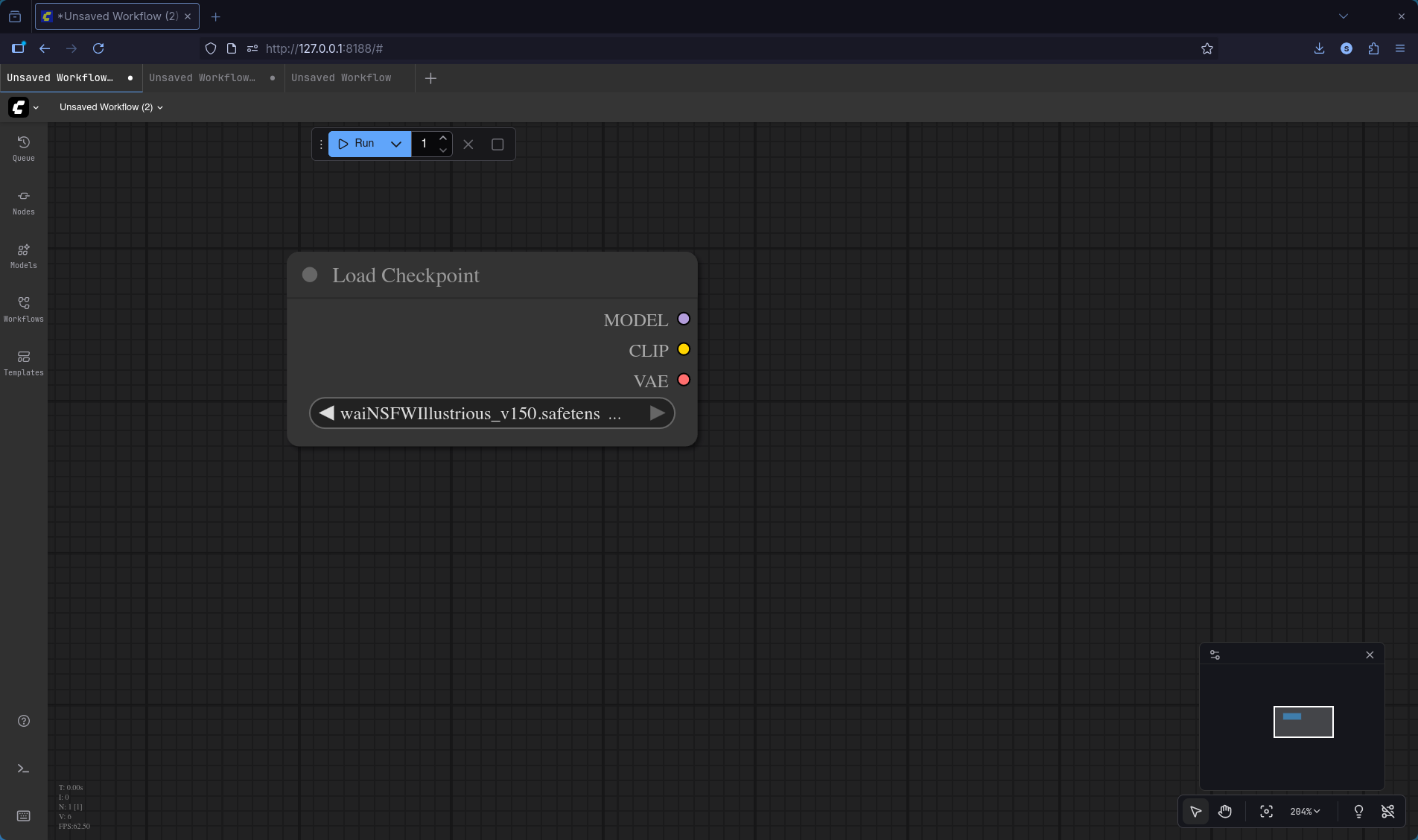
First, let’s click on the model in the left sidebar and open the checkpoint to load the model we downloaded, or create a checkpoint node by right-click -> Add Node -> loaders -> Load Checkpoint. Then it will appear as shown in the screen.
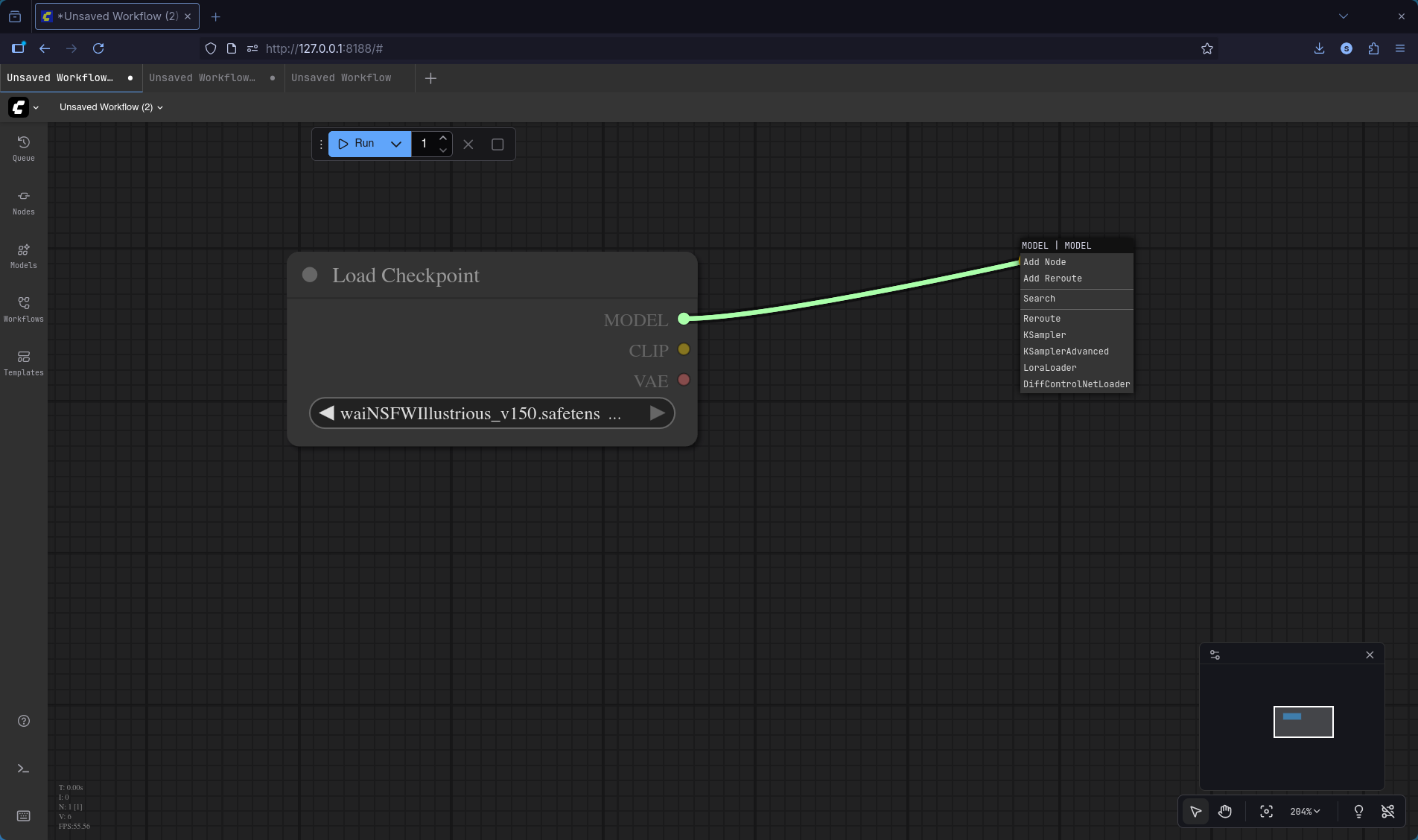
On the side, you can see MODEL, CLIP, VAE. Now if you click and drag any of them, they will stretch out, and when you release, you can create another node. We’ll create nodes this way, but since it would be too long to do everything, I’ll write it in detail with text. (I only used what’s essential.)
-
CLIP Text Encode (Prompt): As the title suggests, this is where you write the prompt. You need to create two of these for Positive and Negative. I copied and pasted all the prompts from here and modified them to apply only the character. (I referenced images that used only the WAI-illustrious-SDXL model as much as possible.)
-
KSampler: This is the most important part. The results vary greatly depending on how you adjust these values.
- seed: This is the unique ID of the image. It’s like Minecraft seeds. You can just leave it as is without setting it separately.
- control_after_generate: In short, it determines how to handle the next seed value after generating an image. Just set it to random. That way, the seed value will change randomly after generation, allowing you to continue creating various images.
- steps: This determines how precisely to refine the image. The higher the value, the more detail is added, but lower values can produce better results, so you don’t need to set it too high.
- cfg: In short, this determines how strictly the AI follows the prompt. The lower this value, the more the AI ignores the prompt and creates arbitrarily, and the higher the value, the more strictly it follows the prompt, but if too high, the image can become unnatural.
- sampler_name: This is where you choose which method or algorithm to use for removing noise. euler gives quick and simple results and is recommended by the official site, so I chose it. (dpmpp_2m, etc., are high-quality samplers)
- scheduler: This is like a schedule for how quickly to reduce noise as you progress through the steps.
- denoise: This is the strength that determines how much to ignore the existing image and draw anew. Depending on this value, whether the image is drawn based on the existing model or whether only the style or composition is maintained changes a lot, so it’s the most important.
-
Empty Latent Image: This sets the image size. Set it to whatever you want.
-
VAE Decode: There’s nothing else to do after creating it. The WAI-illustrious-SDXL page details also say “The VAE is already integrated, please do not ask such questions anymore.” so just connect it.
-
Save Image: This is a node that shows and saves the result image. Just create it.
I used the recommended values from the WAI-illustrious-SDXL page.

If you apply all the above settings, it looks like this. I arranged it for easy viewing, so please refer to it. And if you press Ctrl + S, you can save it in this state, and you can load it again from the workflow in the left sidebar.
And if you execute RUN:
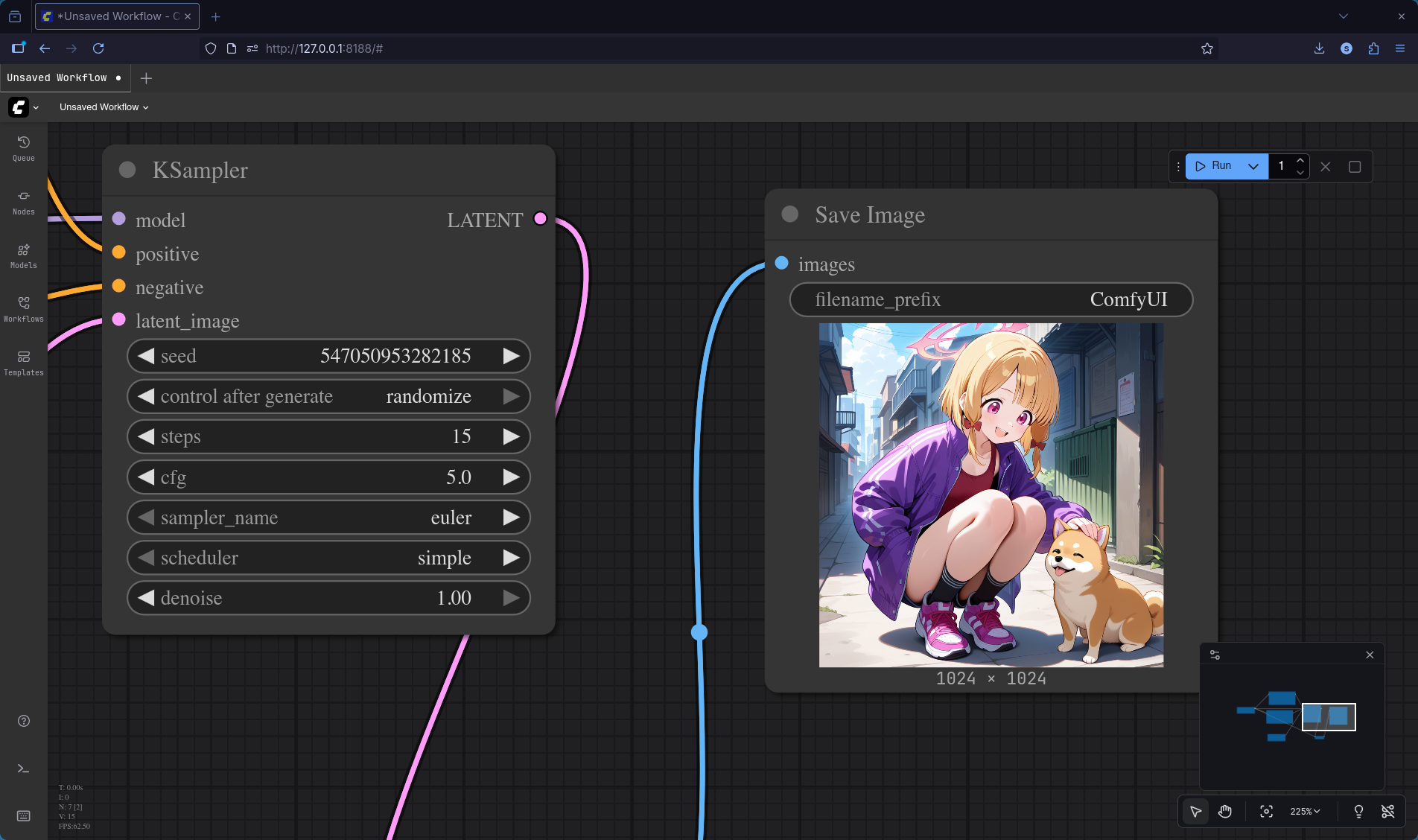
Voila!
The result comes out like this. I’m satisfied just by generating without a discrete GPU, and since quite a satisfying image comes out, it feels like I’ve obtained a nice toy.
You don’t need to save separately; it’s automatically saved to the output folder in the ComfyUI path, so you can generate multiple images and check them later. I also tried creating with different values for steps.
step 20
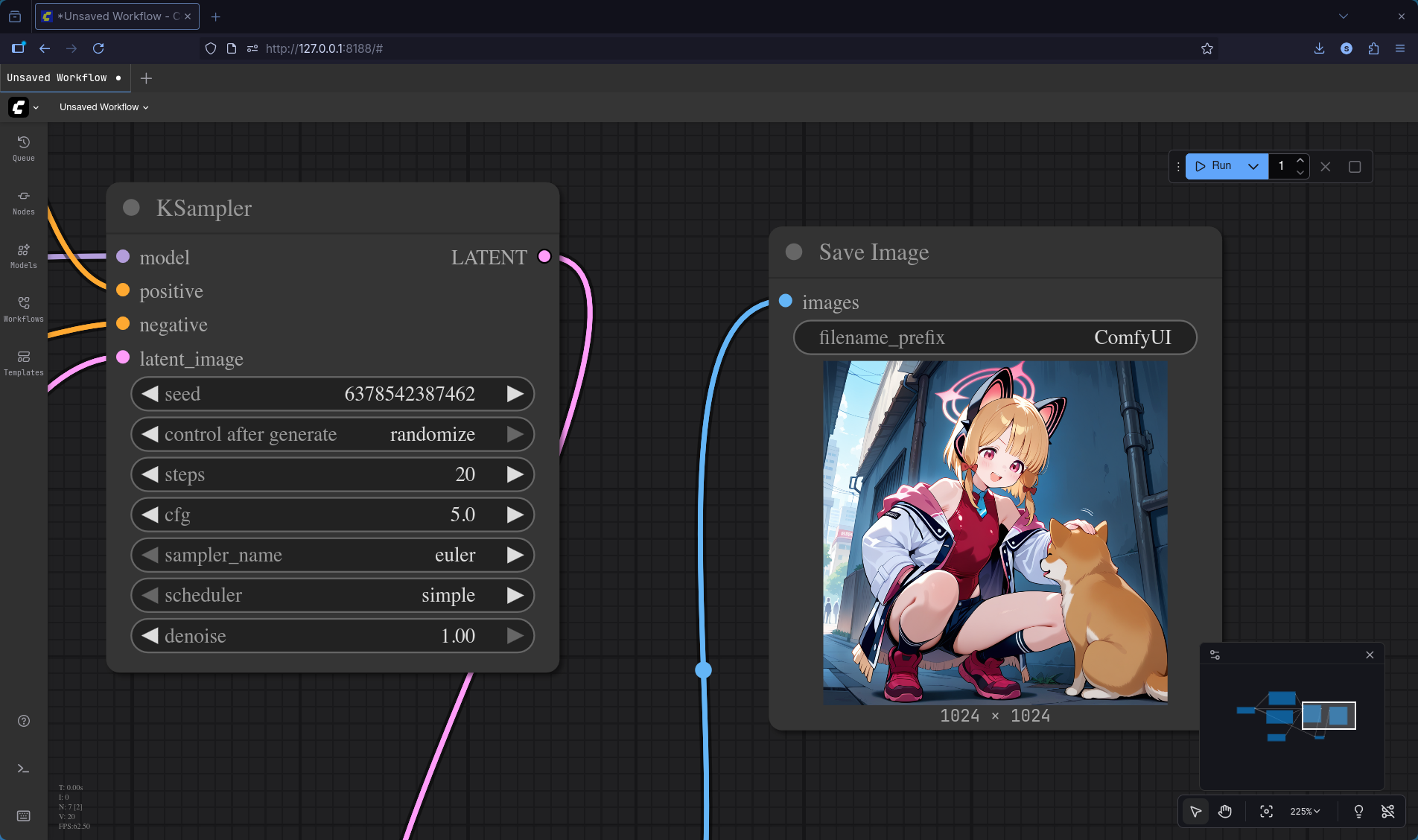
step 25
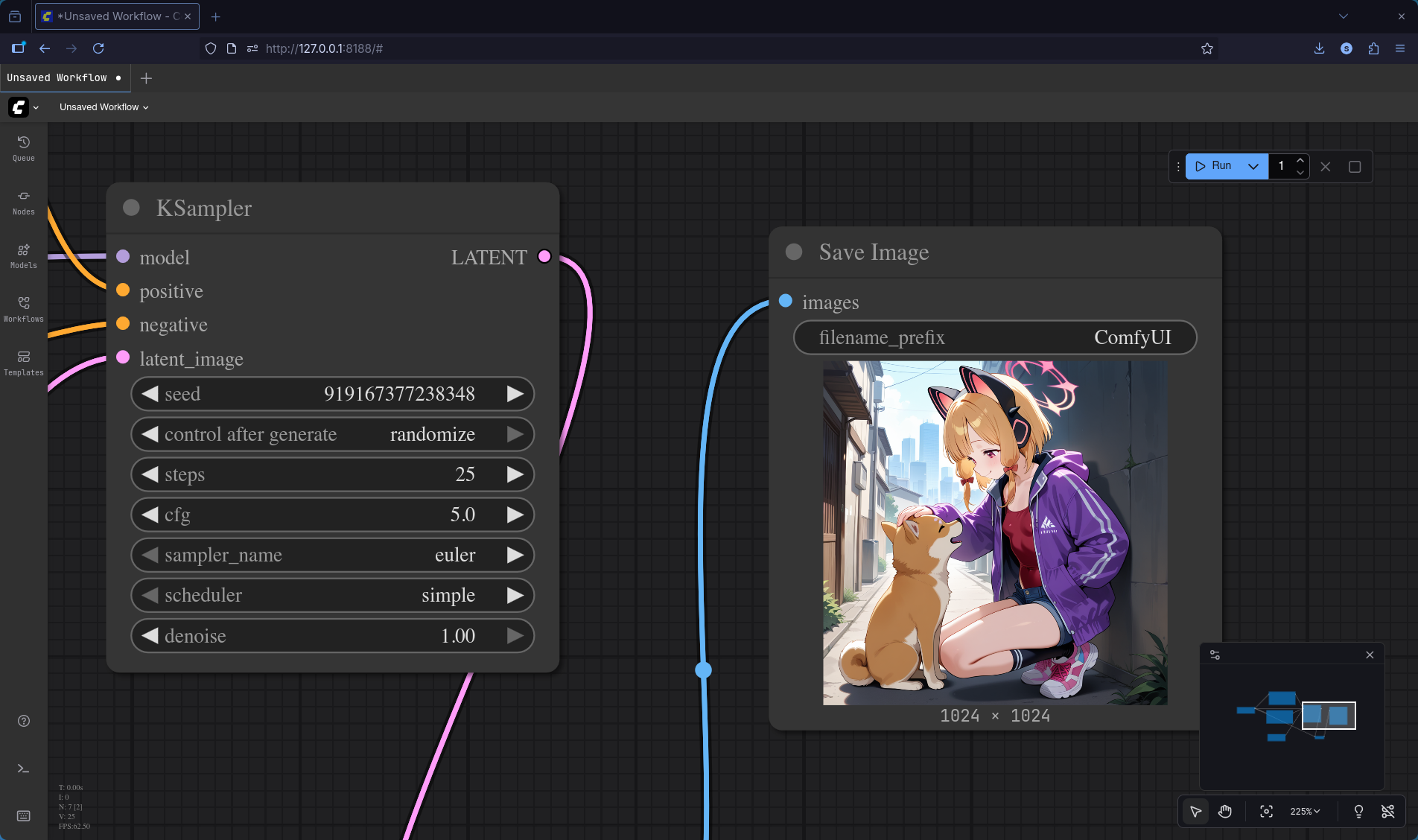
step 30
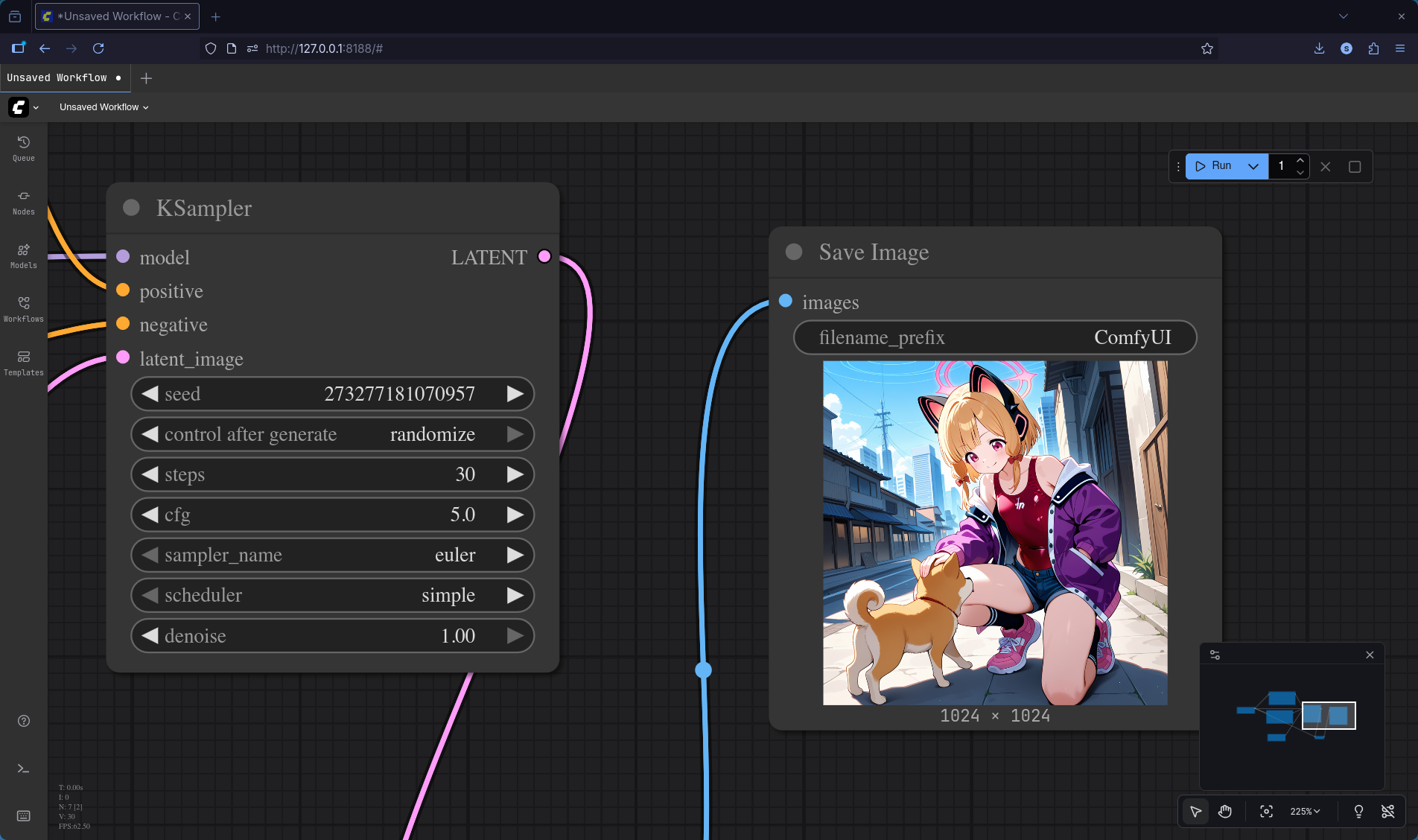
You can see that each result comes out differently with slight changes in detail.
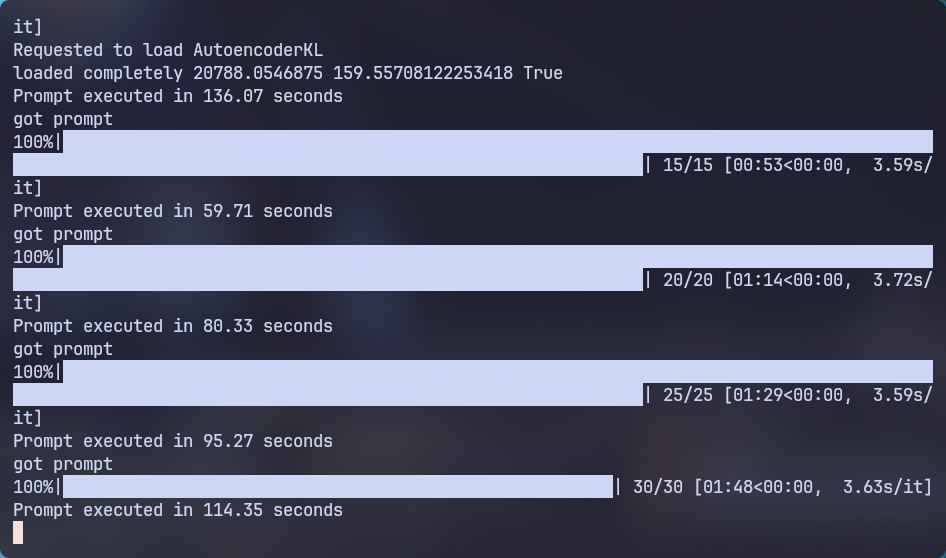
And as you increase the steps, you can see that the time until the result comes out increases, probably because GPU usage increases. From top to bottom: 15, 20, 25, 30.
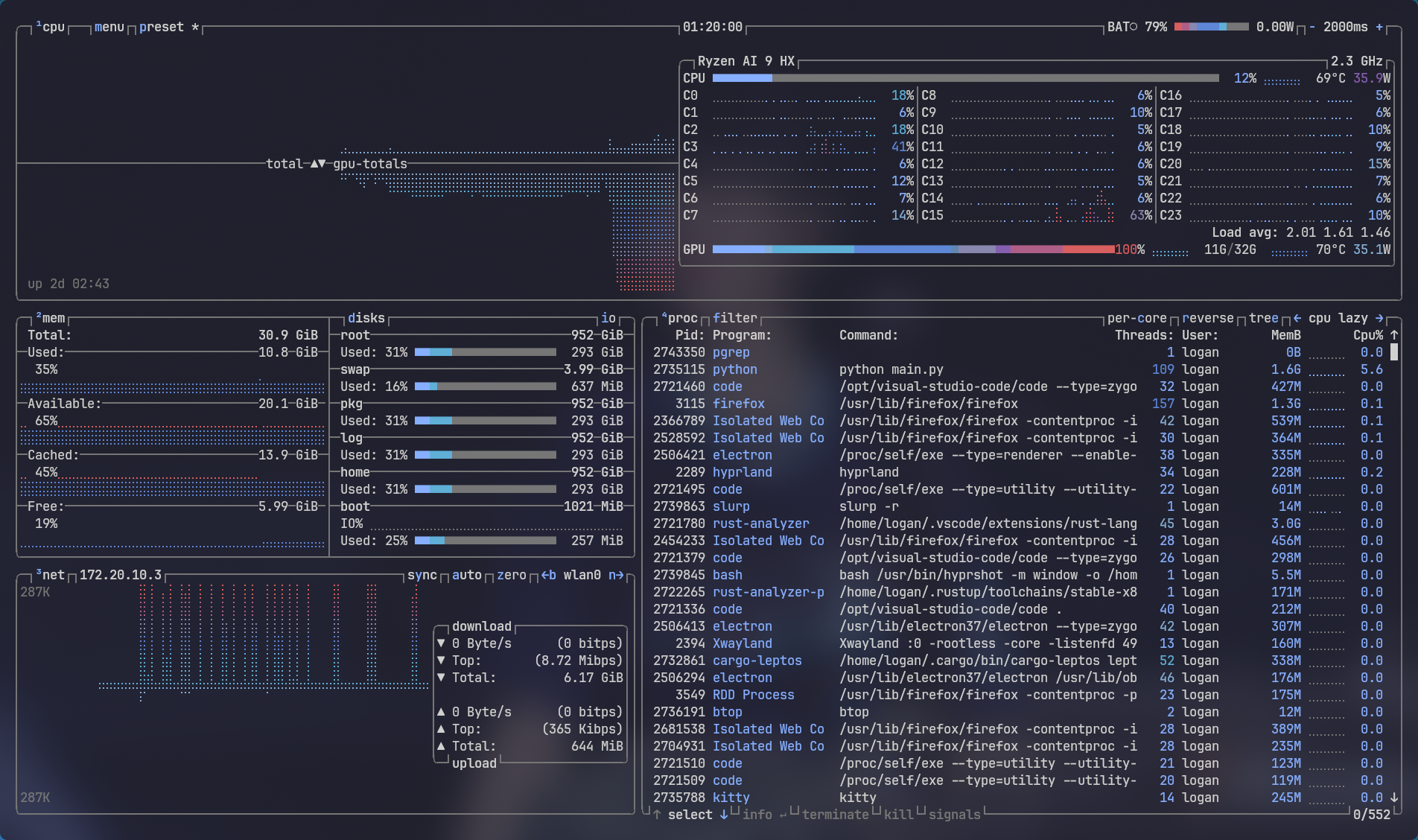
Also, checking btop, I found that about 12GB of VRAM is used, so check your VRAM capacity before creating.
If You Encounter Errors

If you encounter errors even after following the exact steps above, it’s likely the same error I experienced before.
- Your GPU is not compatible, or
- You set the HSA_OVERRIDE_GFX_VERSION value differently from your GPU
If such errors occur, make sure to check the version that matches your GPU.
And finally, since the model I downloaded is an uncensored model, you need to write prompts carefully to generate AI images that everyone can view. (Be careful)
Comments