Oh! It’s Finally Here!

Around early February this year, there was a sale on ThinkPads, so I thought, “Since this is happening, I might as well switch to Linux” and bought one. I spent a whole month just setting it up. (Arch Linux and Hyprland are really…)
Even though I got it on sale, it still cost around 3000 AUD, so I was determined to squeeze every bit of value out of this laptop. I installed various things and customized it.
During this process, I also looked into ways to install AI on my computer and tried to get it working somehow, but concluded that my computer specs weren’t supported yet, which was frustrating. I had been waiting for an update. This made sense because the laptop I bought didn’t have a dedicated graphics card.
Then, this Tuesday, while doing my usual 2-3 times a week package update with yay on my PC, I noticed something interesting.
rocm-core 6.4.4-1
rocm-cmake 6.4.4-1
rocm-hip-sdk 6.4.4-1
....
rocm-core 6.4.4-1
rocm-cmake 6.4.4-1
rocm-hip-sdk 6.4.4-1
....
Oh..! Finally, ROCm got a version update..!
ROCm: Open-source software developed by AMD for GPU programming. In simple terms, it’s software that enables AMD GPU utilization.
However, just because the version was updated doesn’t necessarily mean my specs would be supported, so I checked the release notes without too much expectation…
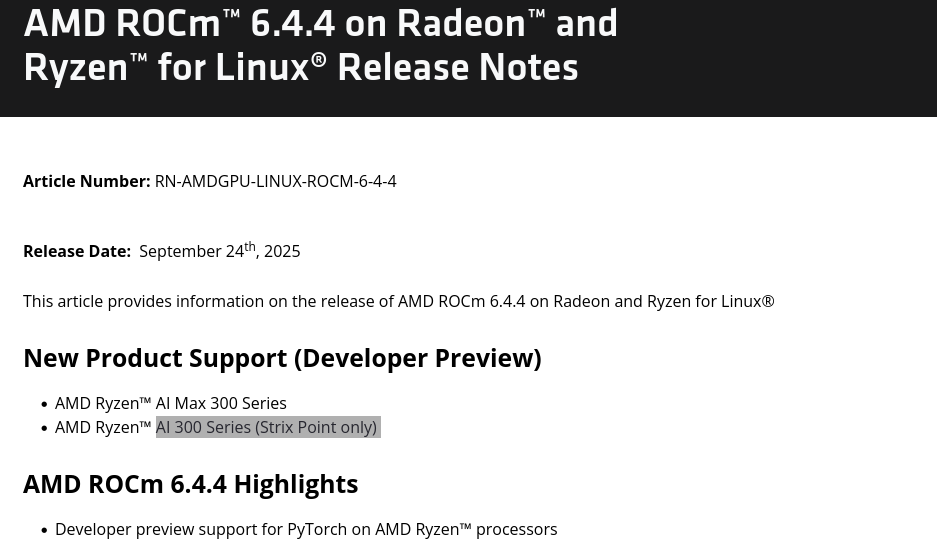
Yahoo! Finally, I can create AI images on my laptop! (For reference, I have a Ryzen AI 9 HX 370)
What Was the Problem Before?

To keep it short since you or future me probably aren’t too curious about this:
PyTorch had a required version, but my computer specs weren’t included in that version. That’s it.
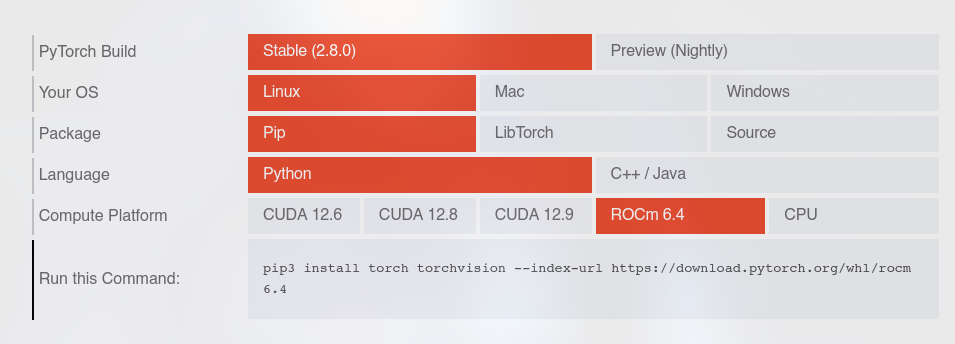
As you can see in the image above, if you’re using Linux, pip, python, and ROCm (AMD GPU), it says to install ROCm 6.4, and your GPU must be supported in that 6.4 version. However, previously, my GPU specs weren’t included, so no matter what I did, the computer would just say “? What is this?” and refuse to work.
Here I Go Again To Think Through the Installation for a Guide!

Let’s go through the things we need to prepare before creating AI images step by step.
I’ll proceed based on my computer specs, but I’ll write it as universally as possible. If you need to adapt it to your specs, ask Gemini or GPT about “how to do XXX” or do a Google search (recommended). And if you do Google search, I highly recommend checking Reddit content first. (It helped me a lot.)
If Reddit content is in English and hard to understand, you can add
?tl=krat the end of the link to translate some posts to Korean!
// How to find your GPU (linux)
lspci | grep -i vga

// If nothing shows up
lspci | grep -i display
// How to find your GPU (linux)
lspci | grep -i vga

// If nothing shows up
lspci | grep -i display
1. VRAM Setup
I’m not entirely sure about this.
What I mean is I don’t know if VRAM allocation can be changed on all computers, just mine, or only ThinkPads. I changed my VRAM by entering the BIOS environment. My laptop could set VRAM up to 48GB, so it was possible, but for other computers, you’ll need to check if your CPU, laptop, or computer manufacturer supports this. This isn’t mandatory, so if you already have high VRAM, you don’t need to worry.
VRAM and RAM: VRAM is video RAM, memory used for graphics calculations. Because of this, it has significantly faster computation speeds than regular RAM. My computer allocates RAM to VRAM, so if you have high RAM, you can change it.
Note that even if you allocate RAM to VRAM, the speed won’t be like a dedicated graphics card, so having more VRAM doesn’t make it faster—it just helps it run smoothly.
I don’t know how to capture screenshots in BIOS, so I’ll just explain how to enter and set it up.
Enter BIOS and go to configuration in the left sidebar.

Click the UMA Frame Buffer Size dropdown and allocate your desired VRAM.
Enter BIOS and go to configuration in the left sidebar.

Click the UMA Frame Buffer Size dropdown and allocate your desired VRAM.
I have 64GB of RAM, so I allocated about 32GB. It will work with at least 12GB of VRAM, but I allocated generously for future AI models.
// VRAM check (linux)
sudo dmesg | grep VRAM

// result
[    1.765377] amdgpu 0000:c4:00.0: amdgpu: VRAM: 32768M 0x0000008000000000 - 0x00000087FFFFFFFF (32768M used)
[    1.765402] [drm] Detected VRAM RAM=32768M, BAR=32768M
[    1.766517] amdgpu 0000:c4:00.0: amdgpu: amdgpu: 32768M of VRAM memory ready
// VRAM check (linux)
sudo dmesg | grep VRAM

// result
[    1.765377] amdgpu 0000:c4:00.0: amdgpu: VRAM: 32768M 0x0000008000000000 - 0x00000087FFFFFFFF (32768M used)
[    1.765402] [drm] Detected VRAM RAM=32768M, BAR=32768M
[    1.766517] amdgpu 0000:c4:00.0: amdgpu: amdgpu: 32768M of VRAM memory ready
// MAC
Click the Apple icon in the top left -> About This Mac -> More Info... -> System Report... -> Graphics/Displays -> Check VRAM (Total) entry

// WINDOWS
Ctrl + Shift + Esc to open Task Manager -> Performance tab -> Select GPU -> Check Dedicated GPU Memory (VRAM)
// MAC
Click the Apple icon in the top left -> About This Mac -> More Info... -> System Report... -> Graphics/Displays -> Check VRAM (Total) entry

// WINDOWS
Ctrl + Shift + Esc to open Task Manager -> Performance tab -> Select GPU -> Check Dedicated GPU Memory (VRAM)
2. ENV Setup
Next, we need to set up the environment, but this only applies to Linux (ㅠㅠ)
// setting
sudo gpasswd -a $USER render

sudo gpasswd -a $USER video

// check
groups
id

//result
❯ groups
yourname video render

❯ id
uid=1000(yourname) gid=1000(yourname) groups=1000(logan),985(video),989(render)
// setting
sudo gpasswd -a $USER render

sudo gpasswd -a $USER video

// check
groups
id

//result
❯ groups
yourname video render

❯ id
uid=1000(yourname) gid=1000(yourname) groups=1000(logan),985(video),989(render)
This really only applies to Linux. By default, MAC/WINDOWS automatically handles this when you boot the computer. If it doesn’t work, I recommend rebooting.
3. Installing HIP/OpenCL Packages
This also only applies to Linux… (ㅠㅠ)
HIP allows CUDA code to run on AMD GPUs with minimal modifications. So if your graphics card is NVIDIA, you’ll need to install CUDA.
Note that installation commands differ for each Linux distribution (distro), so please look it up.
sudo pacman -S rocm-hip-sdk rocm-opencl-sdk
sudo pacman -S rocm-hip-sdk rocm-opencl-sdk
You also need to have Python installed. By default, Mac or Windows should have it installed, but if not, just install the latest version from the official website. If it doesn’t work even though you have it, it might be a version issue.
//install python and pip
sudo pacman -S python python-pip

//check version
❯ python --version
Python 3.13.7

❯ pip --version
pip 25.2 from /usr/lib/python3.13/site-packages/pip (python 3.13)
//install python and pip
sudo pacman -S python python-pip

//check version
❯ python --version
Python 3.13.7

❯ pip --version
pip 25.2 from /usr/lib/python3.13/site-packages/pip (python 3.13)
For MAC, just install XCode. For WINDOWS, it’s a bit tedious, but search for “AMD ROCm for Windows” or “AMD HIP SDK for Windows,”
go to AMD’s official developer site, download the latest version installer, and follow the installer’s instructions.
4. Installing ComfyUI (Manual Install)
Finally, we’re installing the image generation program. Why I chose ComfyUI:
- Flexible like Ditto: When you actually use it, you have considerable control over everything.
- Good performance and efficiency: Using a lot of VRAM is like running Cyberpunk 2077 on ultra settings 3-5 times. But with ComfyUI, you can run only the tasks you want, reducing the load.
- Easy: It’s GUI-based, so you can work visually and understand it at a glance.
Go to the link below and scroll down a bit to find desktop installation links and manual installation guide.
I’ll go through the manual installation with explanations, so just pick out what you need. (I recommend understanding the explanations.)
// Navigate to your desired folder in terminal and git clone for manual installation

git clone https://github.com/comfyanonymous/ComfyUI.git

// Move to ComfyUI folder

cd ComfyUI
// Navigate to your desired folder in terminal and git clone for manual installation

git clone https://github.com/comfyanonymous/ComfyUI.git

// Move to ComfyUI folder

cd ComfyUI
// Create venv virtual environment: Install Python local packages. Simply put, create a warehouse

python -m venv venv

// Activate venv: You need to activate this again later when you reopen the terminal. Simply put, open the warehouse door

source venv/bin/activate

// This is the important part that became available after the update. Install what fits your system. It's written below the ComfyUI GitHub above, and for my specs, it specifies to install this.
// Simply put, these are the items to put in the warehouse

pip install --pre torch torchvision torchaudio --index-url https://rocm.nightlies.amd.com/v2/gfx1151/

// Install other dependencies: This is an install command just like the one above. The previous one just specifies installation based on hardware, but this is just installing the rest.

pip install -r requirements.txt
// Create venv virtual environment: Install Python local packages. Simply put, create a warehouse

python -m venv venv

// Activate venv: You need to activate this again later when you reopen the terminal. Simply put, open the warehouse door

source venv/bin/activate

// This is the important part that became available after the update. Install what fits your system. It's written below the ComfyUI GitHub above, and for my specs, it specifies to install this.
// Simply put, these are the items to put in the warehouse

pip install --pre torch torchvision torchaudio --index-url https://rocm.nightlies.amd.com/v2/gfx1151/

// Install other dependencies: This is an install command just like the one above. The previous one just specifies installation based on hardware, but this is just installing the rest.

pip install -r requirements.txt
5. Running It
Running it may also differ. Like me, if you’re installing with a workaround method rather than actual ROCm installation, the run command might be different.
Looking at the command above, there’s something called gfx1151. Since we installed this, we need to tell the computer “The version that matches my graphics is gfx1151!” so we need to override it.
For reference, even the guide on GitHub above doesn’t have the command for my specs, so I actually struggled for an hour to get it running. (ㅠㅠ)
// Since it's gfx1151, use 11.5.1
HSA_OVERRIDE_GFX_VERSION=11.5.1 python main.py

// If your VRAM is tight or it seems to lag too much when running
HSA_OVERRIDE_GFX_VERSION=11.5.1 python main.py --lowvram
// Since it's gfx1151, use 11.5.1
HSA_OVERRIDE_GFX_VERSION=11.5.1 python main.py

// If your VRAM is tight or it seems to lag too much when running
HSA_OVERRIDE_GFX_VERSION=11.5.1 python main.py --lowvram
6. Execution Result
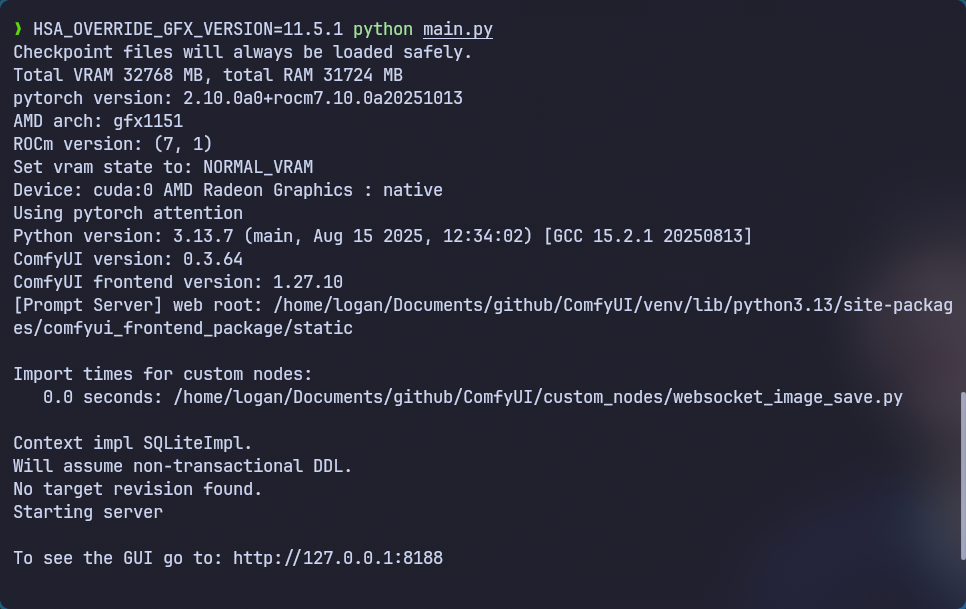
Of course, it ran well.
You might think “Why do you say ‘of course’?” Actually, even when the version didn’t match, it would run. However, when running, countless errors would appear, the browser would freeze, and the terminal would go crazy.
Now if you go to that 127.0.0.1:8188 site
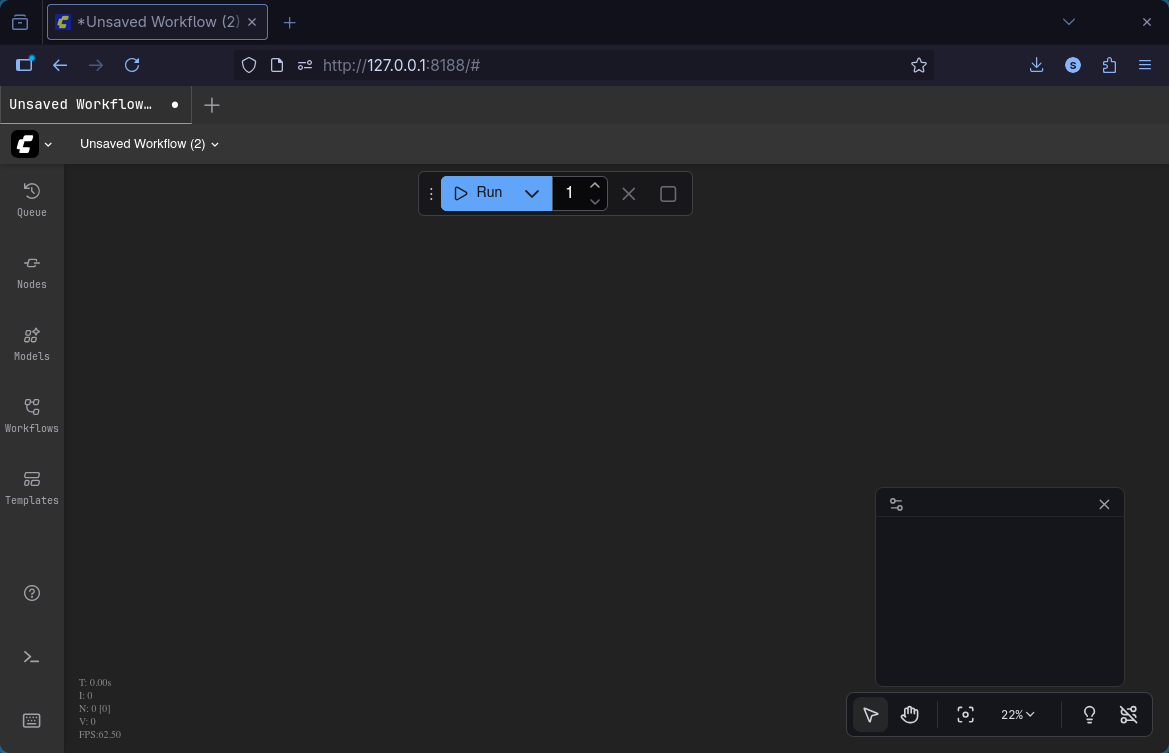
Now you can generate and save AI images here. Even offline! This added one more thing to enjoy in my boring daily life ㅎㅅㅎ
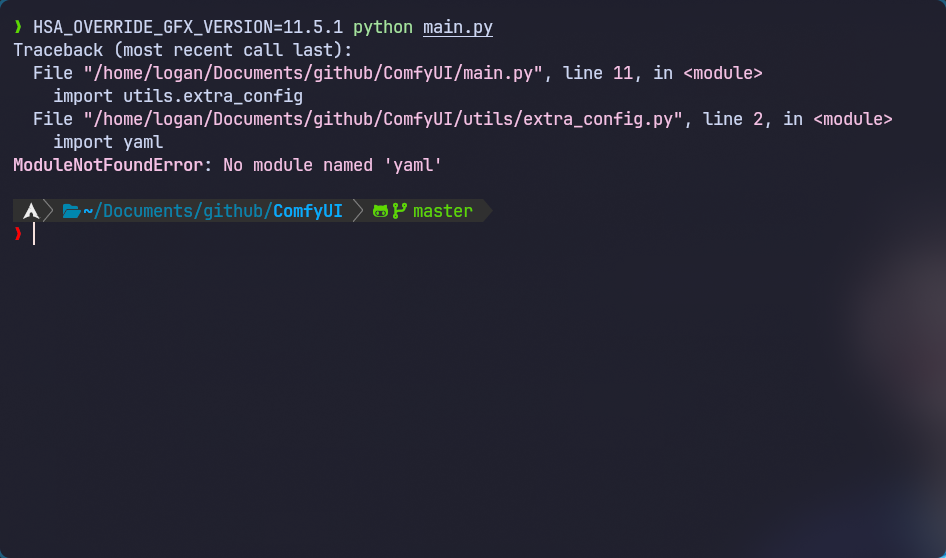
And this is the error that appears when you haven’t activated venv as mentioned above. Don’t panic, just use the command above and run it.
So What Is the AI Results?

Since this got too long, I’ll write about what models I actually use, how to create them, and what results come out in the next post. It’s surprisingly simple and results come out faster than expected, so I’ll explain step by step so everyone can do it.
If you have any questions or need corrections, feel free to leave a comment and I’ll take your feedback. :)
Comments