I’m MacBook, I’m Linux, I’m Windows

All OSes have supported system package managers. Today, I’ll talk about the most famous managers among the many system package managers.
HomeBrew

This is a command that people using MacOS will have heard of familiarly. It uses a method that minimizes conflicts with the system by installing packages in independent paths like /opt/homebrew (Apple Silicon) or /usr/local (Intel Mac) without touching the system directories, and then connecting only the necessary files with symbolic links.
Also, HomeBrew makes it easy to install many development tools and libraries that Apple doesn’t provide by default.
In other words, it means creating a community to use things that Apple doesn’t originally support.
Therefore, unlike other package managers, saying “Mac official support” just because it’s in homebrew is wrong, so be careful when using it. (It’s just Mac support)
// Update package list
brew update

// Search package
brew search <formula-name>

// Install package
brew install <formula-name>

// Install GUI app
brew install --cask <cask-name>

// Remove package
brew uninstall <formula-name>

// Upgrade all packages
brew upgrade
// Update package list
brew update

// Search package
brew search <formula-name>

// Install package
brew install <formula-name>

// Install GUI app
brew install --cask <cask-name>

// Remove package
brew uninstall <formula-name>

// Upgrade all packages
brew upgrade
Chocolatey

It’s no exaggeration to say it’s just “a package manager for Windows”. This package manager, which aims to bring the convenient package management experience of Linux environments to Windows, is based on PowerShell scripts and can install, remove, and update Windows installation files like .exe or .msi.
// Search package
choco search <package-name>

// Install package
choco install <package-name>

// Remove package
choco uninstall <package-name>

// List installed packages
choco list --local-only

// List upgradable packages
choco outdated

// Upgrade all packages
choco upgrade all -y
// Search package
choco search <package-name>

// Install package
choco install <package-name>

// Remove package
choco uninstall <package-name>

// List installed packages
choco list --local-only

// List upgradable packages
choco outdated

// Upgrade all packages
choco upgrade all -y
Scoop

It’s one of the Windows system package managers along with Chocolatey. While Chocolatey typically requires administrator privileges and is installed system-wide, Scoop emphasizes user-level installation and typically doesn’t require administrator privileges. In particular, it uses ZIP files for package contents and focuses on standalone applications. However, since it has a smaller repository than Chocolatey, most people use Chocolatey.
// Search package
scoop search <package-name>

// Install package
scoop install <package-name>

// Remove package
scoop uninstall <package-name>

// List installed packages
scoop list

// List upgradable packages
scoop status

// Update (upgrade) all packages
scoop update *
// Search package
scoop search <package-name>

// Install package
scoop install <package-name>

// Remove package
scoop uninstall <package-name>

// List installed packages
scoop list

// List upgradable packages
scoop status

// Update (upgrade) all packages
scoop update *
apt

If you’ve used Ubuntu as a server administrator or used WSL, you’ve probably heard of this to some extent. apt is a package command for Debian-based distributions such as Ubuntu and Linux Mint. If you’re a developer, it’s good to know up to this point.
// Update package list
sudo apt update

// Search package
apt search <package-name>

// Install package
sudo apt install <package-name>

// Remove package (or including config files)
sudo apt remove <package-name>
sudo apt purge <package-name>

// Upgrade all installed packages
sudo apt upgrade
// Update package list
sudo apt update

// Search package
apt search <package-name>

// Install package
sudo apt install <package-name>

// Remove package (or including config files)
sudo apt remove <package-name>
sudo apt purge <package-name>

// Upgrade all installed packages
sudo apt upgrade
dnf
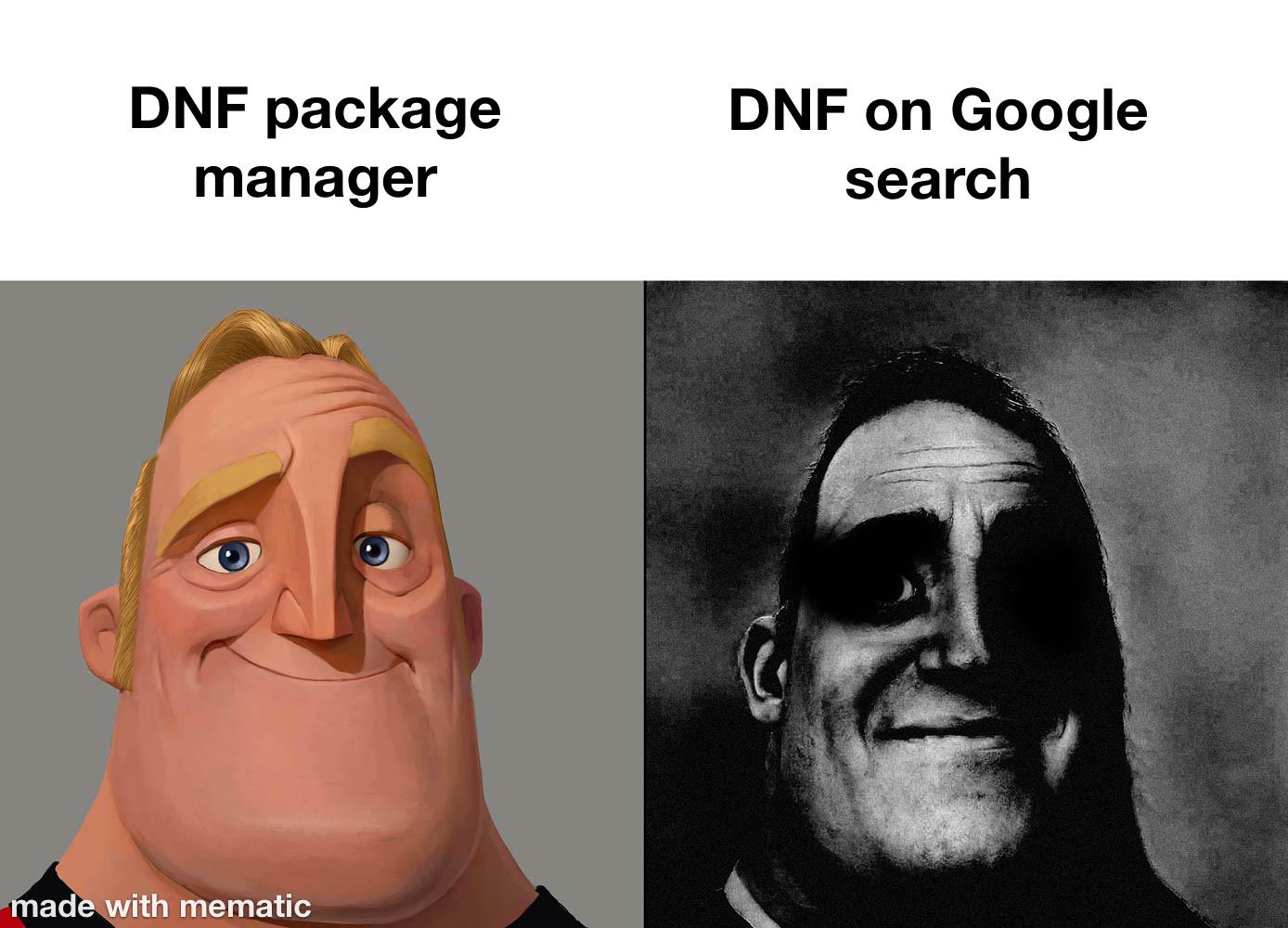
This might be an unfamiliar system package manager. This is a package command used only by users using Fedora or Red Hat-based Distros among Linux distributions.
Previously, they used something called yum, but it’s an upgraded package manager with improved dependency resolution capabilities and faster performance. While yum can still be used, dnf has become the standard.
// Search package
dnf search <package-name>

// Install package
sudo dnf install <package-name>

// Remove package
sudo dnf remove <package-name>

// Check updatable packages
sudo dnf check-update

// Update (upgrade) all packages
sudo dnf update
// Search package
dnf search <package-name>

// Install package
sudo dnf install <package-name>

// Remove package
sudo dnf remove <package-name>

// Check updatable packages
sudo dnf check-update

// Update (upgrade) all packages
sudo dnf update
pacman

The system package manager used in the operating system I use. It’s a package command used in Arch-based systems like Arch Linux and Manjaro. Although the name is pacman, it’s actually an abbreviation for package manager.
Unlike other operating systems, Arch Linux doesn’t release frequently or update in large chunks; instead, it adopts a ‘rolling release’ method that keeps all packages at the latest version, allowing you to update the entire system to the latest state with the pacman -Syu command.
// Search package
pacman -Ss <package-name>

// Install package
sudo pacman -S <package-name>

// Remove package (or remove including dependencies)
sudo pacman -R <package-name>
sudo pacman -Rns <package-name>

// Check installed package list
pacman -Q <package-name>

// Upgrade packages
sudo pacman -Syu

// Force upgrade packages
sudo pacman -Syyu
// Search package
pacman -Ss <package-name>

// Install package
sudo pacman -S <package-name>

// Remove package (or remove including dependencies)
sudo pacman -R <package-name>
sudo pacman -Rns <package-name>

// Check installed package list
pacman -Q <package-name>

// Upgrade packages
sudo pacman -Syu

// Force upgrade packages
sudo pacman -Syyu
Comments