What is TMUX?
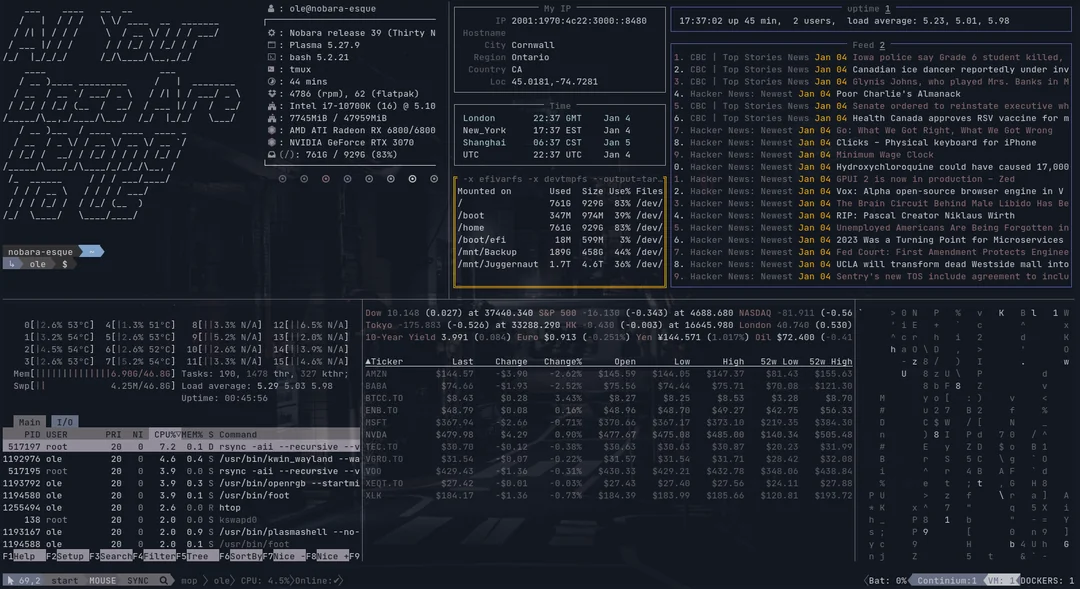 Source: reddit
TMUX is an abbreviation for the difficult term Terminal MUltipleXer.
Simply put, it’s just a terminal manager.
What it does isn’t grandiose. Mainly, it can split one terminal to display multiple terminals. That’s about it.
However, with the single point of preventing messy screens and multiple terminal windows, TMUX is imprinted as a deservedly praised existence among developers.
Now, let’s talk about the actual features of TMUX divided into three parts:
- Session Persistence and Recovery This is the core feature that made tmux famous. Remote server. In other words, even if the network connection is lost while working after connecting to SSH, the work running in the TMUX session never stops.(except when turning off and on again) You just need to reconnect to the server later and reattach to the tmux session to continue working with the screen and state exactly as they were just before the connection was lost. With this amazing feature, you can safely run scripts or compilation work that need to run for a long time.
In other words, if you’re working on ssh and close your laptop, when you come home and just connect to the internet, it continues as is. (Wow!)
-
Screen Splitting There’s not much to explain, it’s just a feature that allows you to split and work within one terminal. TMUX is one of the very lightweight programs because it’s simple, intuitive, and equipped with only essential features like this. (about 1MB)
-
Multiple Workspaces This is literally like a web browser where you can create multiple tabs. As a result, you can have 2 screen splits in tab 1 and 3 screen splits in tab 2, allowing you to organize your workspace even more with just one terminal.
Let’s Install It

Note that my Linux distro is Arch Linux, so it may be different for each
Arch linux
sudo pacman -S tmux
sudo pacman -S tmux
MAC
brew install tmux
brew install tmux
WINDOW(WSL)
sudo apt update
sudo apt install tmux
sudo apt update
sudo apt install tmux
Execution command
tmux
tmux
Useful Shortcuts

Basic Prefix Key
Ctrl + b: This is the most basic key to enter command mode. After this, press other shortcuts to execute the desired command. In other words, it’s the first shortcut to use actual shortcuts. After pressingCtrl + b, you can take your hand off the keyboard and press the next command.
Session and Window Related Shortcuts
-
Ctrl + b+d: Detach the current session. -
Ctrl + b+c: Create a new window. -
Ctrl + b+w: Show window list. -
Ctrl + b+s: Show session list. -
Ctrl + b+n(next): Move to next window. -
Ctrl + b+p(previous): Move to previous window. -
Ctrl + b+[session name]: Move to a session with a specific name.
Window (Panel) Split and Movement Shortcuts
-
Ctrl + b+%: Split vertically to create a new window (panel). (% is literally shift + 5) -
Ctrl + b+": Split horizontally to create a new window (panel). -
Ctrl + b+arrow keys: Move in the desired direction from the current window (panel). -
Ctrl + b+x: Close the current window (panel). -
exit: You can close by entering theexitcommand in the current window (panel).
Copy and Paste Shortcuts
Ctrl + b+[: Enter scroll mode to select the range to copy.Ctrl + b+Spacebar: This is the key to start copying in scroll mode.Ctrl + b+](closing bracket): Paste the copied content.
Other Useful Shortcuts
Ctrl + b+?: Open a help window showing all Tmux shortcuts.Ctrl + b+k: Close the current window and move to another window if it exists.
There are many more shortcuts, but there are too many, so I’ll leave links.
Getting started guide: getting started guide
Detailed shortcuts and features: tmux(1) manual page
However…

If you use tmux for the first time, you’ll notice one inconvenience.
That is, there’s no mouse scroll function, so you have to enter copy mode with the shortcut above and move with arrow keys (↑, ↓) or Page Up/Down keys.
This is an extremely inconvenient feature, but of course there’s a solution. It’s to configure it in the config file.
By the way, these commands are based on Linux, and you’ll need to look up where and how to create this file for other operating systems. (MAC and WSL will probably be similar.)
mkdir ~/.config/tmux
nvim ~/.config/tmux/tmux.conf

// Write in the file, then save and exit
set -g mouse on

// Apply settings
tmux source-file ~/.config/tmux/tmux.conf
mkdir ~/.config/tmux
nvim ~/.config/tmux/tmux.conf

// Write in the file, then save and exit
set -g mouse on

// Apply settings
tmux source-file ~/.config/tmux/tmux.conf
Now when you enter tmux again, you can freely move with mouse scroll.
Therefore, TMUX is something that only shines when you adjust settings like shortcut changes or themes to suit yourself, so if you want to use it, make sure to check how to change settings.
Comments