Everything Starts from the Terminal

Most Linux distros are released as lighter OSes compared to Windows or macOS. However, among them, ultra-lightweight distros follow the philosophy of “if it can run without it, remove it from the distribution”. For example, some don’t include file managers, menu bars, or even WiFi or Bluetooth connection features. This is because everything can be done through the terminal. Screenshots? They classify such things as advanced features, so there’s no right-click either, and even when you connect a USB, you have to manually enter the terminal and write connection commands to view the USB contents.
“Didn’t you already post about Linux before? Is this a repeat?”
This post is literally about the things I experienced when using ultra-lightweight Linux and how I solved them. So now, let me explain the problems I first encountered with Hyprland and how I solved them.
WiFi Connection
The most important thing was WiFi connection. This had to work first so I could search for and install anything, making it the top priority. This is the solution I found after searching repeatedly using my phone.
iwctl: This is a command-line tool for managing WiFi in Linux. At least they had some conscience as this was installed.
// Start iwctl
iwctl

// Check available wifi devices (confirm wlan0)
device list

// Scan nearby WiFi
station wlan0 scan

// View scanned network list
station wlan0 get-networks

// Connect to network
station wlan0 connect "WiFi Name"

// Check connection status
station wlan0 show

// Exit
exit
// Start iwctl
iwctl

// Check available wifi devices (confirm wlan0)
device list

// Scan nearby WiFi
station wlan0 scan

// View scanned network list
station wlan0 get-networks

// Connect to network
station wlan0 connect "WiFi Name"

// Check connection status
station wlan0 show

// Exit
exit
I had to do this every time I connected to WiFi for the first month. (ㅠㅠ)
Currently, I’ve created a top bar using networkmanager(nmcli) and eww that automatically finds and connects to WiFi.
Widgets
After WiFi, I was shocked to discover there were no basic widgets to check things like WiFi connection status, current volume level, monitor brightness, or remaining battery life.
For things like volume and brightness, I could roughly gauge them through sight and hearing, but for battery life, unless the charger was connected, prayer was the only option.
Fortunately, I could check the current status through terminal commands.
// current percentage
cat /sys/class/power_supply/BAT0/capacity
// current percentage
cat /sys/class/power_supply/BAT0/capacity
Font & Input Method
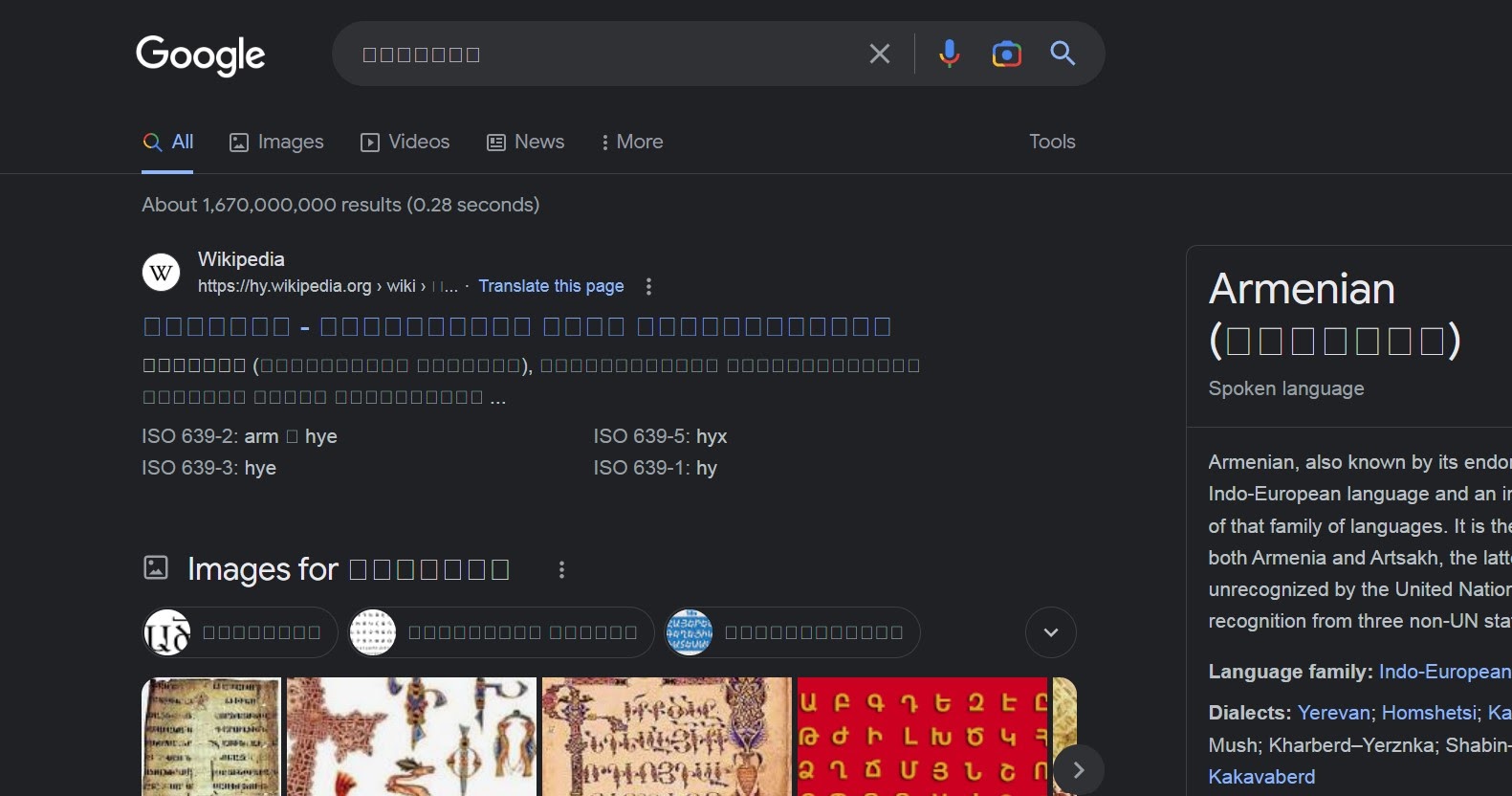
When I entered Google with Firefox, I was greeted with square boxes everywhere. Other things were more urgent, but since it became a problem for searching, I decided to replace the font and enable non-English input.
Fonts can be downloaded from nerd font, but I installed it separately using pacman. For non-English typing, I used fcitx5.
// Install JetBrains font
sudo pacman -S ttf-jetbrains-mono ttf-jetbrains-mono-nerd

// Confirm font installation
fc-list | grep -i "JetBrains"

// Refresh font cache
fc-cache -fv

// (Optional) If you want to set font priority
cd .config
mkdir fontconfig
cd fontconfig
touch fonts.conf

// Then write priority in fonts.conf (example)
<?xml version="1.0" encoding="UTF-8"?>
<!DOCTYPE fontconfig SYSTEM "fonts.dtd">
<fontconfig>
  <alias>
    <family>emoji</family>
    <prefer>
      <family>Noto Color Emoji</family>
    </prefer>
  </alias>

  <alias>
    <family>monospace</family>
    <prefer>
      <family>JetBrainsMono Nerd Font</family>
    </prefer>
  </alias>

  <alias>
    <family>serif</family>
    <prefer>
      <family>JetBrainsMono Nerd Font</family>
    </prefer>
  </alias>

  <alias>
    <family>sans-serif</family>
    <prefer>
      <family>JetBrainsMono Nerd Font</family>
    </prefer>
  </alias>
</fontconfig>
// Install JetBrains font
sudo pacman -S ttf-jetbrains-mono ttf-jetbrains-mono-nerd

// Confirm font installation
fc-list | grep -i "JetBrains"

// Refresh font cache
fc-cache -fv

// (Optional) If you want to set font priority
cd .config
mkdir fontconfig
cd fontconfig
touch fonts.conf

// Then write priority in fonts.conf (example)
<?xml version="1.0" encoding="UTF-8"?>
<!DOCTYPE fontconfig SYSTEM "fonts.dtd">
<fontconfig>
  <alias>
    <family>emoji</family>
    <prefer>
      <family>Noto Color Emoji</family>
    </prefer>
  </alias>

  <alias>
    <family>monospace</family>
    <prefer>
      <family>JetBrainsMono Nerd Font</family>
    </prefer>
  </alias>

  <alias>
    <family>serif</family>
    <prefer>
      <family>JetBrainsMono Nerd Font</family>
    </prefer>
  </alias>

  <alias>
    <family>sans-serif</family>
    <prefer>
      <family>JetBrainsMono Nerd Font</family>
    </prefer>
  </alias>
</fontconfig>
Then apply input method.
// Just to be safe, download everything needed
sudo pacman -S fcitx5 fcitx5-configtool fcitx5-hangul kcm-fcitx5

// Run GUI
fcitx5-configtool
// Just to be safe, download everything needed
sudo pacman -S fcitx5 fcitx5-configtool fcitx5-hangul kcm-fcitx5

// Run GUI
fcitx5-configtool
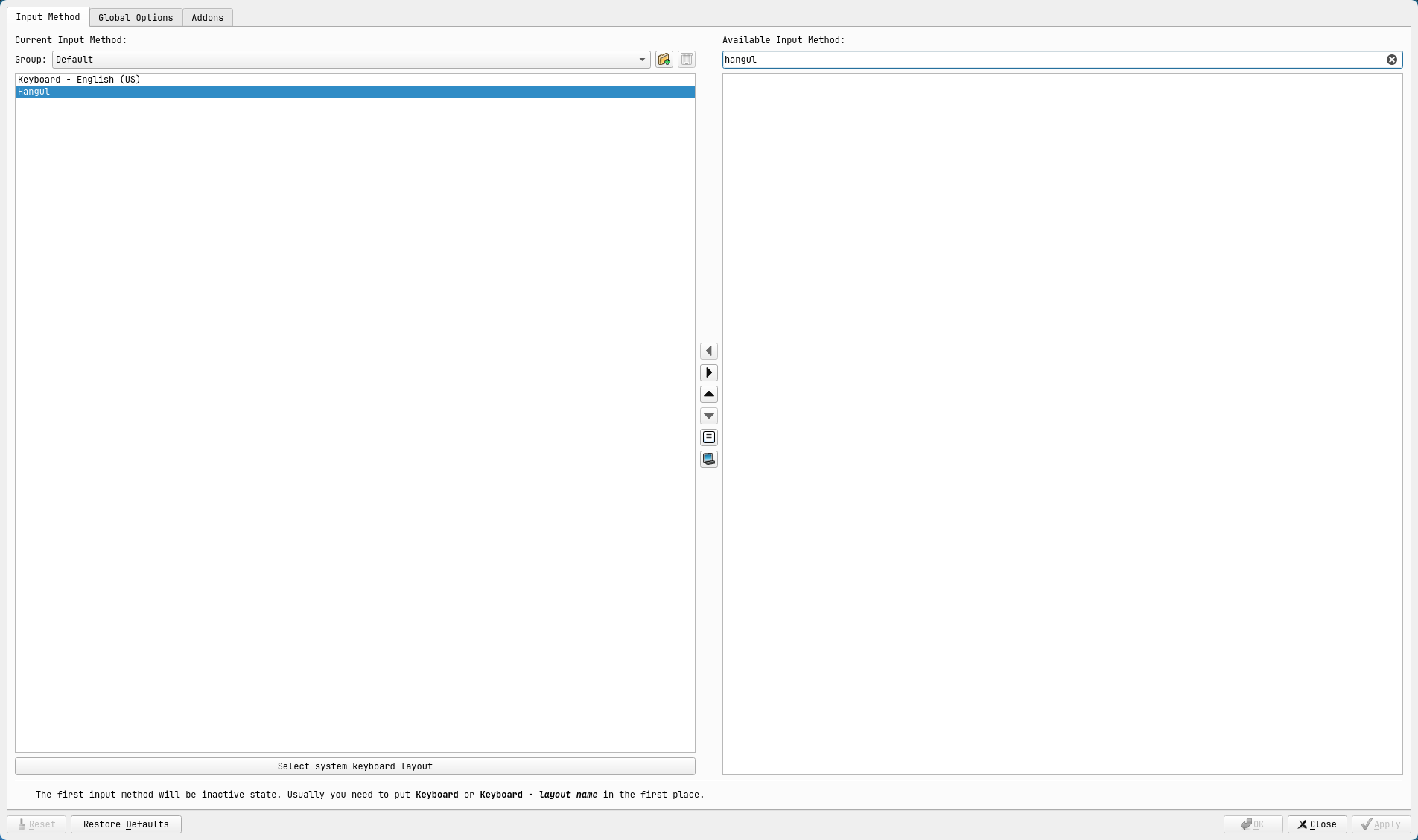
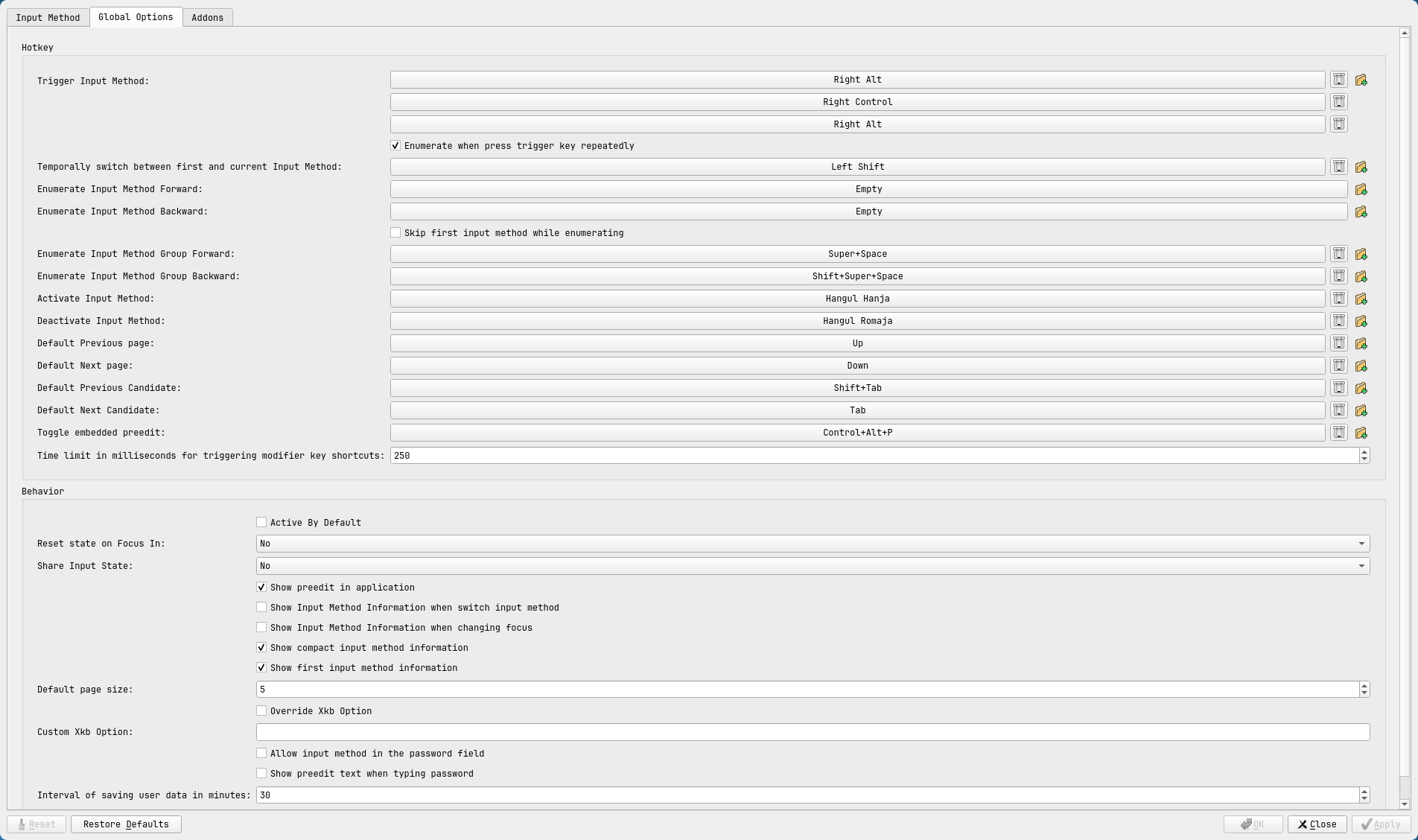
Then search for Hangul in Available Input Method and move it to the left, and change to Right Alt in Global Options to switch input methods by pressing the right Alt key.
Additionally, in Hyprland, you need to write configuration code in hyprland.conf so that fcitx5 automatically runs when the computer starts.
// Open hyprland.conf
nvim .config/hypr/hyprland.conf

// Add to auto start section
exec-once = fcitx5 -d

// Add to environment variables section
env = QT_IM_MODULE,fcitx
env = XMODIFIERS,@im=fcitx
env = SDL_IM_MODULE,fcitx
env = GLFW_IM_MODULE,fcitx
// Open hyprland.conf
nvim .config/hypr/hyprland.conf

// Add to auto start section
exec-once = fcitx5 -d

// Add to environment variables section
env = QT_IM_MODULE,fcitx
env = XMODIFIERS,@im=fcitx
env = SDL_IM_MODULE,fcitx
env = GLFW_IM_MODULE,fcitx
Of course, other distributions may have automatic application parts, so look them up. These lightweight distributions are almost similar, so the code reference will be helpful.
External USB Connection
I also have to manually control connecting and disconnecting external hard drives. The frustrating part is
// Check disk list after connection (confirm external drive sda1)
lsblk

// Create space for external drive
mkdir /mnt/external

// Mount external drive to the space
sudo mount /dev/sda1 /mnt/external

// Unmount before disconnecting
sudo unmount /mnt/external
// Check disk list after connection (confirm external drive sda1)
lsblk

// Create space for external drive
mkdir /mnt/external

// Mount external drive to the space
sudo mount /dev/sda1 /mnt/external

// Unmount before disconnecting
sudo unmount /mnt/external
Now, every time I connect and before disconnecting, I need to do sudo mount /dev/sda1 /mnt/external, sudo umount /mnt/external.
I also did this for the first month, and currently I’ve made it automatic through a plugin for the file manager called thunar.
By the way, that sudo unmount /mnt/external is the same as right-clicking “Safely Remove Hardware” in Windows or macOS.
Battery Management
This wasn’t very complex. You might think “What is this?”, but simply put, it’s about controlling different performance levels for sleep mode, CPU boost, GPU boost, etc., when charging or in battery mode.
In other words, unlike the previous battery status widget, I needed a program for overall system management.
I used TLP. TLP has the advantage of being set-it-and-forget-it after installation, very comprehensive battery life protection and settings, and being lightweight. However, it can conflict with other power management tools, and settings can be complex, so you need to be careful.
// Install tlp
sudo pacman -S tlp tlp-rdw

// Start tlp
sudo systemctl start tlp

// Auto-start tlp when booting
sudo systemctl enable tlp.service

// Check status: enabled and active means it's running properly
systemctl status tlp
// Install tlp
sudo pacman -S tlp tlp-rdw

// Start tlp
sudo systemctl start tlp

// Auto-start tlp when booting
sudo systemctl enable tlp.service

// Check status: enabled and active means it's running properly
systemctl status tlp
It will work normally in most cases, but if it’s not a lightweight distribution like Arch Linux, it might conflict with automatically installed power management tools, so you need to choose only one.
TLP configuration is as follows.
// Open tlp.conf file in editor and change desired settings
sudo vim /etc/tlp.conf
sudo nano /etc/tlp.conf

//ex

// Apply CPU power save in battery mode
#CPU_SCALING_GOVERNOR_ON_AC=powersave
CPU_SCALING_GOVERNOR_ON_BAT=powersave

// CPU boost off in battery mode
CPU_BOOST_ON_AC=1
CPU_BOOST_ON_BAT=0

// Start charging below 70%, stop charging at 80%
START_CHARGE_THRESH_BAT0=70
STOP_CHARGE_THRESH_BAT0=80

// Save and apply settings
sudo systemctl restart tlp

// Check settings
sudo tlp-stat -s
// Open tlp.conf file in editor and change desired settings
sudo vim /etc/tlp.conf
sudo nano /etc/tlp.conf

//ex

// Apply CPU power save in battery mode
#CPU_SCALING_GOVERNOR_ON_AC=powersave
CPU_SCALING_GOVERNOR_ON_BAT=powersave

// CPU boost off in battery mode
CPU_BOOST_ON_AC=1
CPU_BOOST_ON_BAT=0

// Start charging below 70%, stop charging at 80%
START_CHARGE_THRESH_BAT0=70
STOP_CHARGE_THRESH_BAT0=80

// Save and apply settings
sudo systemctl restart tlp

// Check settings
sudo tlp-stat -s
If you want to change back to default instead of TLP, you can check and modify files in
/sys/class/power_supply/BAT0/like when checking battery status earlier.
External Monitor Connection
This also requires controlling everything like connection, aspect ratio, refresh rate, etc., to get it the way I want. Fortunately, I could easily check monitor specs with a command called hyprctl.
// hyprland
hyprctl monitors

// arch linux
xrandr
// hyprland
hyprctl monitors

// arch linux
xrandr
As you can see from the results above, pixels and refresh rates are specified, so you need to match them. I created an arrangement where the laptop monitor is on the bottom and the external monitor is on top, centered so I can view them vertically.
// In order: monitor number, pixels@refresh rate, position, scale
// Note that there's also an auto feature, so look it up.
monitor = eDP-1, 1920x1200@60, 0x0, 1
monitor = DP-2, 2560x1440@60, -320x-1440, 1
// In order: monitor number, pixels@refresh rate, position, scale
// Note that there's also an auto feature, so look it up.
monitor = eDP-1, 1920x1200@60, 0x0, 1
monitor = DP-2, 2560x1440@60, -320x-1440, 1
For reference, since I don’t know much about other distributions, let me tell you how to check with Linux commands. This is just a command to check if it’s connected or not, so just use it as a reference.
// Check my ports
ls /sys/class/drm

// result
card1       card1-DP-2  card1-DP-4  card1-DP-6  card1-eDP-1
card1-Writeback-1  version card1-DP-1  card1-DP-3  card1-DP-5
card1-DP-7  card1-HDMI-A-1  renderD128

// If status content is connected, it means physically connected
// If status content is disconnected, it means nothing is connected to that port
cat /sys/class/drm/card-DP-2/status
// Check my ports
ls /sys/class/drm

// result
card1       card1-DP-2  card1-DP-4  card1-DP-6  card1-eDP-1
card1-Writeback-1  version card1-DP-1  card1-DP-3  card1-DP-5
card1-DP-7  card1-HDMI-A-1  renderD128

// If status content is connected, it means physically connected
// If status content is disconnected, it means nothing is connected to that port
cat /sys/class/drm/card-DP-2/status
Conclusion

Honestly, many of these commands are not used at this point. However, it’s no exaggeration to say that this contains the feelings of frustration when I first used Linux and the month-long journey of struggling to find commands.
I hope this post helps when you need such commands while using Linux (especially Arch).
Comments